
Recover a Linux Server That Fails to Boot
This recovery runbook targets RHEL 9 on a conventional local-disk installation. Firmware, storage-controller, encrypted-root, SAN, and clustered-storage failures may require their own recovery procedure. It follows the boot chain from firmware and GRUB through initramfs to systemd, with targeted repair examples for an incorrect non-root fstab entry and a damaged initramfs.
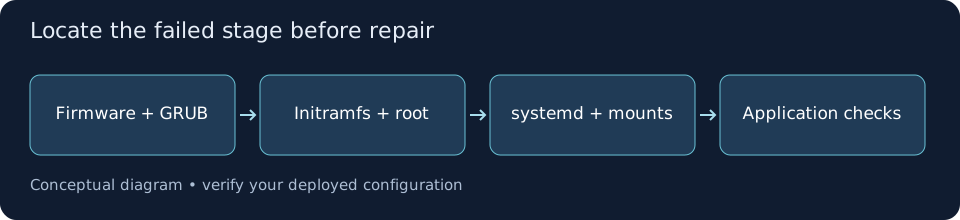
Locate the Failed Stage of Boot
TriageRecord the exact error, recent kernel or storage changes, firmware boot mode, and whether GRUB appears. No disk in firmware suggests a different failure from a GRUB shell, a dracut emergency shell, or a systemd failed-mount screen. These read-only commands apply only if you already have a Linux emergency shell; otherwise record the console display.
cat /proc/cmdlinelsblk -fblkid# systemd-stage shell only:systemctl --failedjournalctl -b -p err --no-pager# dracut-stage shell, when the file exists:test ! -f /run/initramfs/rdsosreport.txt || cat /run/initramfs/rdsosreport.txt❯ What to Verify
The failing stage, root-device identifiers, and first relevant error are recorded before a change.Try an Existing Known-Good Kernel
Reversible TestIf GRUB is available, select an older installed kernel that previously worked. This is a one-time selection, not a default change. If root has mounted and the failure concerns systemd startup, edit that GRUB entry for one boot and append the target parameter shown below to its linux line. Rescue requires authentication; it does not bypass encrypted-root unlocking.
# One-time GRUB linux-line addition, after recording existing arguments:# systemd.unit=rescue.target# After reaching a systemd shell:cat /proc/cmdlinesystemctl --failedjournalctl -b --no-pager❯ What to Verify
An older kernel or rescue target provides access, or the same failure confirms that external rescue media is needed.Start RHEL Rescue Media and Identify the Installed Root
Rescue EnvironmentBoot a RHEL 9 installation DVD through the same firmware mode as the installed system. Choose Troubleshooting, then Rescue a Red Hat Enterprise Linux system. Select the read-only mount option when offered. Confirm the installed root path from the rescue screen: it is commonly /mnt/sysroot. Commands below use that path only after you verify it.
lsblk -o NAME,SIZE,TYPE,FSTYPE,UUID,MOUNTPOINTSfindmnt /mnt/sysrootcat /mnt/sysroot/etc/os-releasecat /mnt/sysroot/etc/fstabfindmnt /mnt/sysroot/bootfindmnt /mnt/sysroot/boot/efi❯ What to Verify
The mounted root belongs to the affected RHEL installation, and separate boot/EFI filesystems are identified.Read Installed-System Logs and Compare Mount Identifiers
EvidenceRead persistent journals from the installed filesystem when available; a journal from the rescue environment describes a different boot. An incorrect UUID, absent optional disk, or failed required network mount can cause emergency mode. Compare fstab against lsblk and blkid, then inspect the exact failed mount. Absence of persistent logs does not prove the prior boot was healthy.
journalctl --directory=/mnt/sysroot/var/log/journal --list-boots# Use the boot ID from the list for the failing installed-system boot.journalctl --directory=/mnt/sysroot/var/log/journal \ --boot=BOOT_ID_FROM_LIST -p err --no-pagergrep -v '^[[:space:]]*#' /mnt/sysroot/etc/fstabblkid❯ What to Verify
Evidence identifies a specific failed mount, missing root device, kernel/initramfs problem, or a different branch requiring further diagnosis.Correct Only a Confirmed fstab Error
Targeted RepairFor a confirmed stale UUID on a non-root data mount, obtain the correct identifier from the storage owner and current mapping. Switch the installed root to read-write only for the approved repair. Save the original file and edit only the faulty entry. A separate /boot or /boot/efi must be mounted from its verified device before a kernel repair; do not mount unreviewed fstab entries in bulk.
mount -o remount,rw /mnt/sysroottest -f /mnt/sysroot/etc/fstab || { echo "Installed fstab is missing; stop." >&2; exit 1; }test ! -e /mnt/sysroot/etc/fstab.pre-recovery || { echo "Preserve the existing recovery backup; stop." >&2; exit 1; }test ! -L /mnt/sysroot/etc/fstab.pre-recovery || { echo "Recovery backup path is a symlink; inspect it before continuing." >&2; exit 1; }cp -a /mnt/sysroot/etc/fstab /mnt/sysroot/etc/fstab.pre-recovery || exit 1vi /mnt/sysroot/etc/fstab# Before chroot, verify/mount any separate /boot and /boot/efi from known devices.# The rescue environment may already provide these API mounts; bind only if missing.for api_path in dev proc sys run; do mkdir -p "/mnt/sysroot/$api_path" || exit 1 if ! mountpoint -q "/mnt/sysroot/$api_path"; then mount --rbind "/$api_path" "/mnt/sysroot/$api_path" || exit 1 mount --make-rslave "/mnt/sysroot/$api_path" || exit 1 fidone# In the installed root, check fstab syntax and referenced filesystems.chroot /mnt/sysroot findmnt --verify --verbose❯ What to Verify
The corrected entry points to the intended filesystem and verification exposes no unresolved entry errors.Rebuild Only the Confirmed Damaged Initramfs
Kernel RepairUse this branch only when evidence indicates a missing or damaged image. Verify /boot and its free space inside the installed system. Enter its root, choose an exact installed kernel version from /lib/modules and the boot entries, and confirm matching files. Never use uname -r from rescue media to select the installed kernel. Back up an existing image before rebuilding.
chroot /mnt/sysroot /bin/bashcat /etc/redhat-release# Compare this source with Step 3; do not write to an unmounted boot directory.findmnt --target /boot# After verifying the intended source, allow writes for this repair only.mount -o remount,rw / || exit 1if mountpoint -q /boot; then mount -o remount,rw /boot || exit 1; fidf -h /bootls /lib/modulesgrubby --info=ALL# Replace this value with the exact installed kernel selected above.kernel_version='REPLACE_WITH_INSTALLED_KERNEL_VERSION'test -d "/lib/modules/$kernel_version" || exit 1test -f "/boot/vmlinuz-$kernel_version" || exit 1if test -f "/boot/initramfs-$kernel_version.img"; then test ! -e "/boot/initramfs-$kernel_version.img.pre-recovery" || exit 1 test ! -L "/boot/initramfs-$kernel_version.img.pre-recovery" || exit 1 cp -a "/boot/initramfs-$kernel_version.img" \ "/boot/initramfs-$kernel_version.img.pre-recovery" || exit 1fidracut --force "/boot/initramfs-$kernel_version.img" "$kernel_version"lsinitrd "/boot/initramfs-$kernel_version.img"exit❯ What to Verify
dracut completes successfully for the selected installed kernel and lsinitrd can inspect its rebuilt image.Repair a Confirmed GRUB Configuration Fault
Bootloader BranchUse this branch only when GRUB loads but its main configuration is missing or malformed. In the installed-system chroot, verify the mounted boot filesystems, installed kernels, BLS entries, and configuration inputs. Preserve an existing main configuration, then regenerate it at the RHEL 9 path below. On UEFI, the EFI grub.cfg is a forwarding stub: do not overwrite it. Missing EFI binaries or firmware entries need the platform-specific Red Hat reinstall procedure.
chroot /mnt/sysroot /bin/bashfindmnt --target /boot# Proceed only after the source matches the intended installed boot filesystem.mount -o remount,rw / || exit 1if mountpoint -q /boot; then mount -o remount,rw /boot || exit 1; fils /boot/loader/entriesgrubby --info=ALLcat /etc/default/grubif test -f /boot/grub2/grub.cfg; then test ! -e /boot/grub2/grub.cfg.pre-recovery || exit 1 test ! -L /boot/grub2/grub.cfg.pre-recovery || exit 1 cp -a /boot/grub2/grub.cfg /boot/grub2/grub.cfg.pre-recovery || exit 1figrub2-mkconfig -o /boot/grub2/grub.cfggrub2-script-check /boot/grub2/grub.cfgexit❯ What to Verify
The main configuration regenerates and passes syntax checking; installed kernel entries still map to the correct files.Boot Normally and Verify Application Recovery
ValidationLeave the chroot, synchronize writes, and reboot through the console. Disconnect rescue media or adjust the one-time boot choice so the installed disk is selected. Verify the target kernel, required mounts, service health, application requests, and the current boot’s errors. Do not declare recovery solely because a login prompt appears.
syncreboot# After the installed system boots:uname -rcat /proc/cmdlinesystemctl --failedfindmnt --verify --verbosedf -hTjournalctl -b -p err --no-pager# Replace with the affected application:systemctl status app.service --no-pager❯ What to Verify
The intended kernel boots normally, required filesystems mount, and the affected application passes its real health check.Restore the Previous Change if Validation Fails
RollbackIf the repair introduces a new failure, return through the console or rescue media. Review saved files before restoring them and preserve the failing version for analysis. The commands illustrate the fstab rollback only. For an initramfs rollback, restore the saved image for that exact kernel or choose the known-good kernel. Escalate unresolved storage or bootloader faults with the collected evidence.
# From verified rescue media, after enabling writes:diff -u /mnt/sysroot/etc/fstab.pre-recovery /mnt/sysroot/etc/fstab# Only when the saved version is the intended rollback:cp -a /mnt/sysroot/etc/fstab.pre-recovery /mnt/sysroot/etc/fstabchroot /mnt/sysroot findmnt --verify --verbosesync❯ What to Verify
The previous configuration is restored deliberately, and evidence plus remaining failure scope are handed to the system/storage owner.