
Windows Server DHCP Scopes and Failover Operations
Use this workflow to inspect Windows DHCP scopes, plan a small change, and verify a failover relationship. Examples use documentation-only subnets. A DHCP scope controls address leases and options for a subnet; changing it can disconnect clients or hand out incorrect gateway and DNS settings.
Inventory the DHCP Server and IPv4 Scopes
Read FirstRun the DHCP Server module from an elevated administrative session with the required network permissions. Confirm the server name and authorization before making changes. Remote commands can use -ComputerName.
Get-WindowsFeature DHCPGet-DhcpServerInDCGet-DhcpServerv4Scope -ComputerName 'dhcp01.lab.example' | Format-Table ScopeId, Name, State, StartRange, EndRange, SubnetMask❯ View Expected Console Output
ScopeId Name State StartRange EndRange SubnetMask------- ---- ----- ---------- -------- ----------192.0.2.0 Lab-Clients Active 192.0.2.50 192.0.2.200 255.255.255.0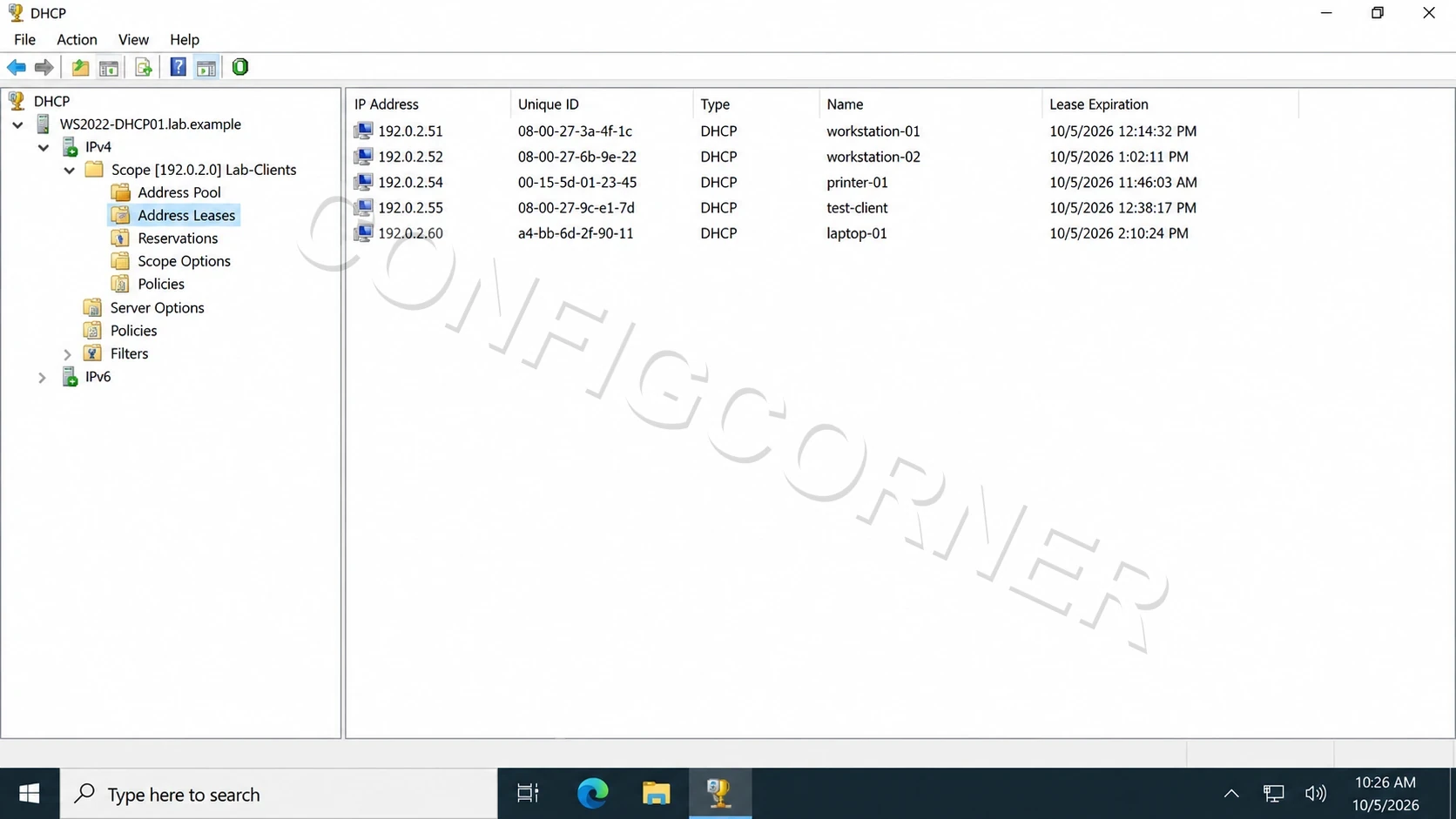
DHCP MMC: Inspect active leases in the selected IPv4 scope.
Review the Pool, Exclusions, Reservations, and Options
Scope DesignCheck whether planned addresses overlap with static infrastructure. Inspect exclusions, reservations, lease duration, and options such as router (003), DNS servers (006), and DNS domain name (015). Confirm the option values with the network and DNS owners.
$server = 'dhcp01.lab.example'$scope = '192.0.2.0'Get-DhcpServerv4ExclusionRange -ComputerName $server -ScopeId $scopeGet-DhcpServerv4Reservation -ComputerName $server -ScopeId $scopeGet-DhcpServerv4OptionValue -ComputerName $server -ScopeId $scopeGet-DhcpServerv4Lease -ComputerName $server -ScopeId $scope | Select-Object -First 10 IPAddress, HostName, ClientId, AddressState❯ View Expected Console Output
OptionId Name Value-------- ---- -----3 Router {192.0.2.1}6 DNS Servers {192.0.2.10, 192.0.2.11}15 DNS Domain {lab.example}Plan a Change Around the Subnet
Change PlanDocument the network ID, mask, usable pool, exclusions, reservations, lease duration, gateway, DNS servers, relay path, and rollback. For a new scope, validate that no other DHCP server serves the same subnet and that routing/relay is ready. Do not copy the sample values directly into a live network.
# Read the exact scope being changed immediately before the window.Get-DhcpServerv4Scope -ComputerName $server -ScopeId $scope | Format-List *Get-DhcpServerv4OptionValue -ComputerName $server -ScopeId $scope❯ View Expected Console Output
Compare scope settings with the approved change record and address plan.Inspect Failover and Replicate Deliberately
High AvailabilityWindows DHCP failover shares IPv4 scope settings and lease state between two partner servers. Check the relationship before changing it. After editing a failover-enabled scope, replication is a separate operation; initiate it from the server whose settings should win because partner settings are overwritten.
Get-DhcpServerv4Failover -ComputerName $server
# After an approved scope change, replicate only that scope from the# authoritative partner. Confirm the partner and scope ID first.Invoke-DhcpServerv4FailoverReplication `  -ComputerName $server `  -ScopeId $scope `  -Force
Get-DhcpServerv4FailoverStatistics -ComputerName $server
❯ View Expected Console Output
Review relationship state and confirm the intended scope is synchronized.Further reading: DHCP failover overview and Replicate DHCP failover settings.