
Find a USB Drive with No Drive Letter in Windows: A Beginner Guide
Before you begin
- Applies to:Windows 11 when a USB data drive appears in Disk Management but not File Explorer.
- Where to start:Start in Disk Management on the affected PC using an administrator account. Use PowerShell 7 or later for optional disk and volume comparisons.
- What you need:Have the USB drive available and identify it before making any change.
Guide tools
Troubleshooting Steps
Identify the physical disk
Start hereOpen Disk Management from the Start menu. Compare disk size and label with your USB device. When safe to remove, compare the list before and after reconnecting. A disk number can change between connections. Use several details to confirm the right volume.
Get-Disk | Select-Object Number, FriendlyName, BusType, Size, OperationalStatusGet-Volume | Select-Object DriveLetter, FileSystemLabel, FileSystem, Size, HealthStatus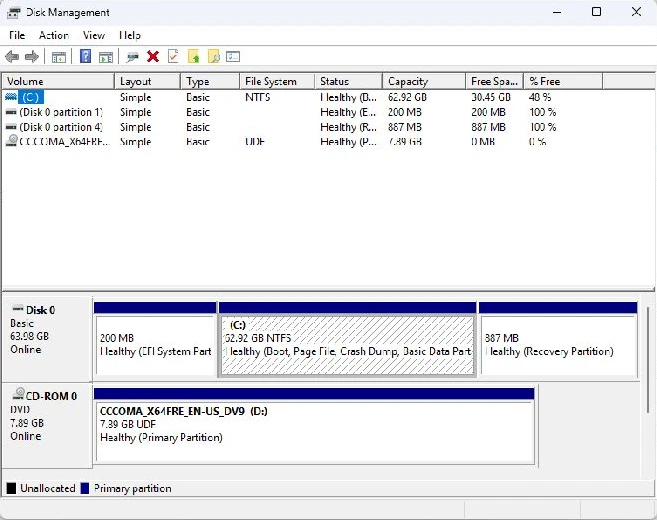
Figure 1: Disk Management lists volumes above the graphical disk map. This example shows the system disk and its EFI and recovery partitions. Use the disk size and volume label to identify your USB drive before making changes.
Check the volume and assign a letter
Narrow the causeProceed only if the disk is online and the volume is a known healthy data partition in a Windows-readable filesystem. Right-click that volume and choose Change Drive Letter and Paths, then Add. Pick an unused letter and confirm. If the option is unavailable, or the disk shows RAW, Unallocated or Not Initialized and should contain data, stop and get help.
Open the drive and verify its contents
VerifyOpen File Explorer and select the assigned letter. Check that a known file opens. An access error after assignment points to a separate permission, filesystem or encryption issue. For a letter you just added, you can undo it from Change Drive Letter and Paths after closing files on the volume.
Reference
Your feedback keeps these production procedures accurate and battle-tested.