
Troubleshoot Repeated Restart Required Messages in Windows: A Beginner Guide
Before you begin
- Applies to:Windows 11 when Windows Update keeps asking for a restart.
- Where to start:Start on the affected PC in Windows Update. Run the command checks in PowerShell 7 or later.
- What you need:Record the time, update name, and KB number if shown. Check that the notice came from Windows Update because other apps can also ask for a restart.
Guide tools
Troubleshooting Steps
Check the update status and last boot time
Start hereOpen Settings > Windows Update and note whether it says Restart required, shows an error, or is still installing. In Update history, record recent results. Run this command before restarting so you have a time to compare with the next boot.
Get-CimInstance Win32_OperatingSystem | Select-Object LastBootUpTime, BuildNumber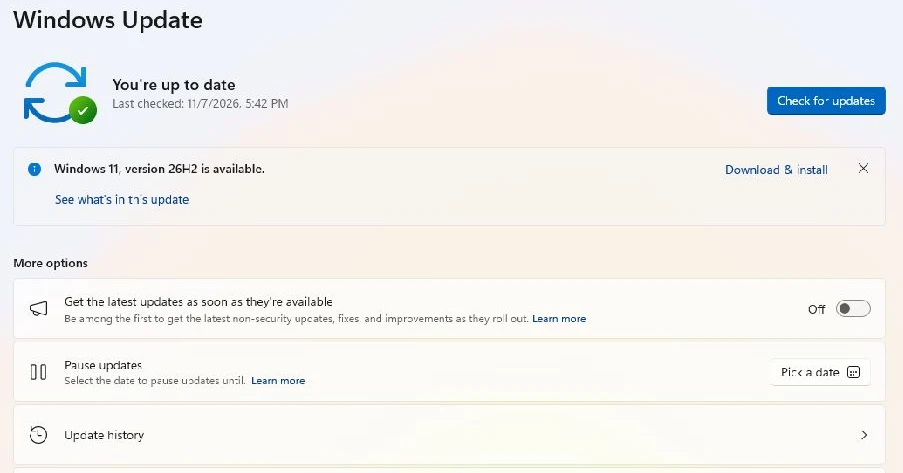
Figure 1: The Windows Update page shows the current status. This Windows 11 VM had no restart pending.
Restart at a suitable time
Narrow the causeSave work and use Windows Update’s restart or scheduling option if offered. Otherwise, choose Start > Power > Restart. Use Restart for this check because shutting down can use Fast Startup. Follow your organization’s schedule on a managed device.
Check what changed after sign-in
VerifyRepeat the boot-time command and check Windows Update and Update history again. A newer boot time and a cleared prompt mean the restart completed. If the same update keeps failing, note its error code and use the Windows Update installation guide. If a different update is now pending, evaluate that update separately.
Get-CimInstance Win32_OperatingSystem | Select-Object LastBootUpTime, BuildNumber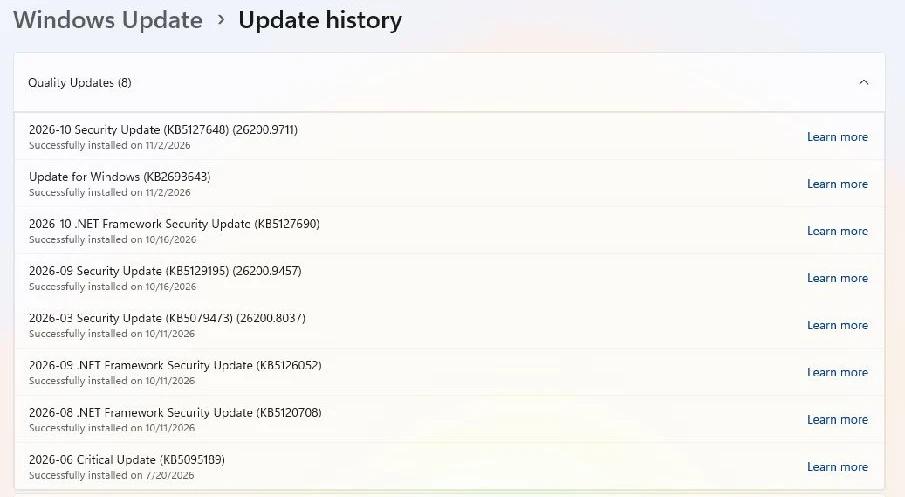
Figure 2: Expand Quality Updates in Update history to match the update date and KB number.
Reference
Your feedback keeps these production procedures accurate and battle-tested.