
Troubleshoot Connected, No Internet on Windows: A Beginner Guide
Before you begin
- Applies to:Windows 11 showing Connected, no internet on Wi-Fi or Ethernet.
- Where to start:Open PowerShell 7 or later on the affected PC. Start on the network you are already connected to.
- What you need:Identify the Wi-Fi or Ethernet connection that shows the problem.
Guide tools
Troubleshooting Steps
Check whether other devices are affected
Start hereCheck the same website on another device connected to the same network. Turn off mobile data on the second device for this comparison if you are allowed to. If both fail, check for a router or provider outage or a sign-in page on a guest network. If only one fails, continue on that PC.
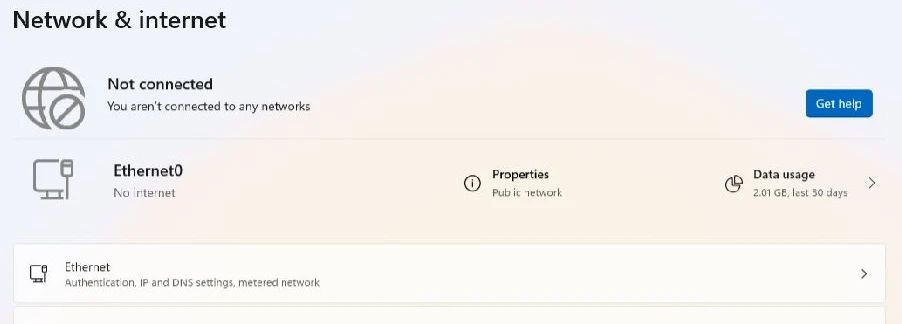
Figure 1: Open Settings → Network & internet and check the status under the adapter you are using. In this Windows 11 VM, Ethernet0 shows No internet.
Find the gateway and test the local path
Narrow the causeLook for your active adapter and its Default Gateway in the output. Replace the example gateway with the address shown. A reply shows that the gateway answered. No reply is only a clue because some routers block ping. If the adapter has a 169.254 address or no gateway, follow the lease guide below.
ipconfig.exe$Gateway = '192.168.1.1'ping.exe -n 2 $GatewayCompare DNS with an HTTPS request
VerifyDNS should return one or more addresses. An HTTP response shows a working path to that website. If DNS succeeds but HTTPS fails, check the browser, approved proxy, VPN, or guest network sign-in. If normal browsing works despite the Windows icon, the network may block Windows’ connectivity check. After an approved correction, open two known sites in the original browser.
Resolve-DnsName -Name example.comcurl.exe --head --max-time 10 https://example.com/Reference
Your feedback keeps these production procedures accurate and battle-tested.