
First 10 Minutes on a New Linux Host: A Beginner Guide
Before you begin
- Applies to:Linux hosts with Bash, coreutils, util-linux, procps, and iproute2. The systemd checks apply only where systemd is available.
- Where to start:Sign in to the Linux host with an authorized regular account.
- What you need:Have the host name ready and record missing commands or limited permissions as you go.
Guide tools
Before changing a Linux host, learn what it is running and what state it is in. This checklist gathers a basic picture using inspection commands. It does not install packages, change addresses, restart services or write an automatic report.
The sample outputs illustrate what to look for. Restricted containers can hide information that is visible on the host.
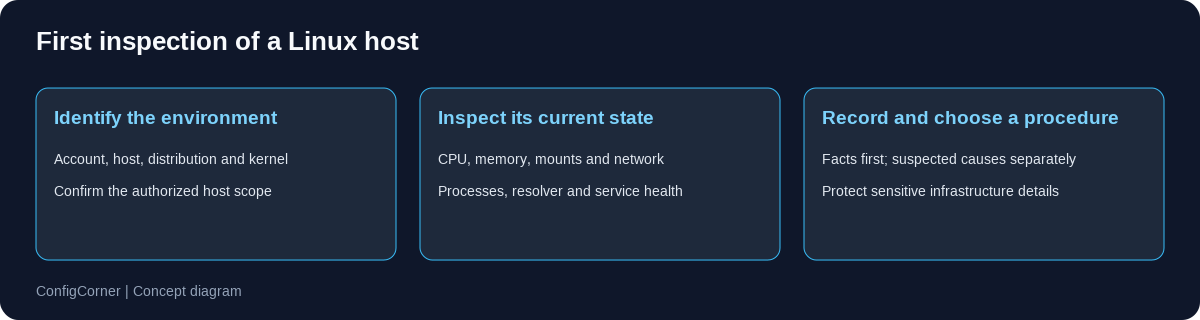
Confirm Your Account and the Host
IdentityConfirm where you logged in and which account is running commands. A root shell requires extra care even when the planned commands are inspections. The directory helps explain relative paths; it is not proof of the host’s purpose. Check the host against the asset or change record before proceeding.
whoamiidhostnamepwdIdentify Distribution, Kernel and Architecture
PracticeRead the release metadata and kernel version separately. Distribution versions and kernel versions are different identifiers, and vendor kernels may contain backported fixes. A version string alone cannot establish vulnerability status. Record the architecture when choosing packages or support instructions.
cat /etc/os-releaseuname -runame -mgetconf LONG_BIT❯ Illustrative Output (Results Vary)
Look for PRETTY_NAME, ID and VERSION_ID in os-release.uname reports the running kernel and architecture, not the package support status.Read Uptime and Load in Context
PracticeUptime shows how long this running environment has been up and reports recent load averages. Load includes runnable tasks and some uninterruptible waits; it is not a CPU percentage. Compare it with workload history and available resources before diagnosing saturation.
uptimenprocInspect CPU and Memory Capacity
PracticeReview CPU information and memory accounting. For memory, available is generally more useful than the free column alone because some cache can be reclaimed. Virtual machines and containers may expose a limited or virtualized view; reported host resources do not necessarily equal the limits applied to an individual workload.
lscpufree -hMap Block Devices Without Modifying Them
PracticeList device types, filesystem types and mount points. A disk, partition and logical volume are different layers. Empty filesystem or mount fields are not permission to format a device. In containers, this command may show only part of the storage arrangement.
lsblk -o NAME,TYPE,SIZE,FSTYPE,MOUNTPOINTSCheck Mounted Capacity and Inodes
PracticeCompare mounted-filesystem space with inode usage. A filesystem can exhaust inodes while bytes remain available. findmnt shows the backing source and options for the root path. These are starting observations; open deleted files, quotas and application reservations can require further investigation.
df -hTdf -ifindmnt -T /Inspect Addresses and Routes
PracticeList addresses and IPv4/IPv6 routes without changing them or sending a test probe. Check whether the expected interface and route exist. A default route does not prove external connectivity, and an address alone does not prove that DNS or a particular application works.
ip -brief addressip route showip -6 route showInspect the Resolver Configuration
PracticeCheck whether resolv.conf is managed through a symlink and inspect its resolver-related entries. A loopback nameserver can be a local stub resolver rather than an error. On hosts running systemd-resolved, resolvectl can show per-link DNS details; skip it if that service is not in use. These commands inspect configuration and do not perform a DNS lookup.
ls -l /etc/resolv.confgrep -E '^[[:space:]]*(nameserver|search|domain)[[:space:]]' /etc/resolv.conf# Optional when systemd-resolved is in use:resolvectl statusInspect Processes and Service Health
PracticeList a small process summary using command names rather than full argument strings. CPU percentages are samples with tool-specific accounting. Inspect process 1 before running systemd commands. A degraded state or failed unit needs investigation; do not clear failed flags or restart services merely to make the display green. Some healthy boot or shutdown transitions also produce nonzero is-system-running statuses.
ps -eo pid,user,comm,%cpu,%mem --sort=-%cpu | head -n 11ps -p 1 -o comm=# Optional when process 1 is systemd:systemctl is-system-runningsystemctl --failed --no-pagerRecord a Small Baseline and Pick the Next Step
HandoverRecord the approved host identifier, OS and kernel, expected role, available resources, mounted-storage findings, interface/route observations and any failed units. Separate observed facts from suspected causes. Compare with the inventory or owner’s baseline. This checklist changed no system settings and requires no cleanup.
| Finding | Follow-up guide |
|---|---|
| Unexpected mount or filesystem mapping | Filesystems and mounts |
| Low space or inode exhaustion | Disk-space and inode triage |
| Address, link or route problem | Network-interface triage |
| Resolver configuration needs investigation | Linux DNS troubleshooting |
| Failed systemd service | Service failure diagnosis |
| Memory pressure | Memory and OOM triage |
References: installed os-release(5), uname(1), uptime(1), free(1), lsblk(8) and ip(8) manuals; upstream OS identification, systemctl and resolvectl.
Your feedback keeps these production procedures accurate and battle-tested.