
Configure Least-Privilege sudo Access Safely
Before you begin
- Applies to:A disposable Ubuntu or RHEL-family VM that runs systemd and has a patched, supported sudo package.
- Where to start:Start in the VM with an administrator account that can already use sudo.
- What you need:Have a separate standard local account with a usable password and no other admin grants. The example uses ccoperator. Replace the name consistently if needed.
Guide tools
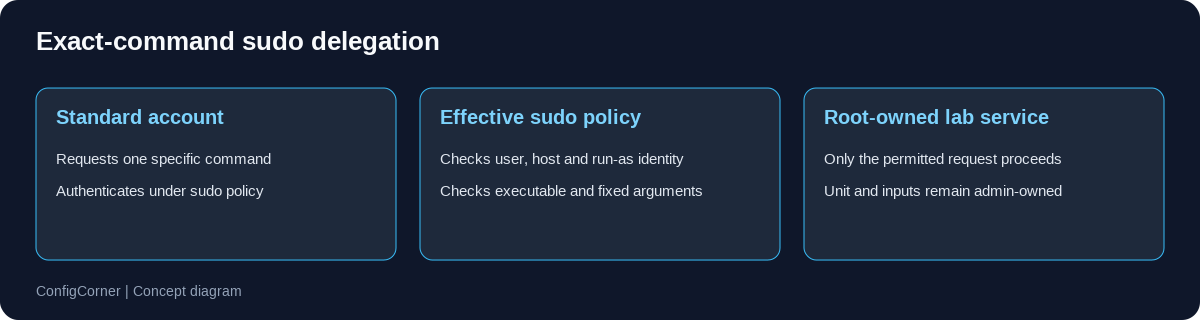
This lab grants an existing standard account permission to restart exactly one service and inspect its state. It uses a root-owned service that runs /usr/bin/true, so the restart has no application workload to disrupt. You will validate the complete sudo policy, test permitted and denied requests, and remove the lab rule.
Use a disposable Ubuntu or RHEL-family VM running systemd, a patched supported sudo package, an administrator account with working sudo access, and a separate standard local account named ccoperator. Create that account using your approved onboarding procedure or the users and permissions guide. It needs a usable login password for the password-authenticated tests and must have no other administrative grants. Replace the username consistently if you use another approved account.
Check the Host and Existing Privileges
PreflightRun these checks from the administrator session. Confirm systemd is process 1, locate the actual command path, and review the test account’s existing rules. The examples require /usr/bin/systemctl and the normal /etc/sudoers policy path. Stop if local paths differ until every rule and test has been adjusted.
ps -p 1 -o comm=sudo --version | head -n 1command -v systemctlgetent passwd ccoperatorid ccoperatorsudo -lsudo -l -U ccoperator❯ Illustrative Output (Results Vary)
systemdSudo version 1.9.x/usr/bin/systemctlConfirm the Policy Include and Baseline Syntax
Validate FirstCheck the full policy before adding anything. Inspect the main file in a privileged editor or pager and confirm that it includes /etc/sudoers.d. Both modern @includedir and legacy #includedir forms may appear; the latter is an active directive. Do not modify an organization-managed include structure without its change process.
sudo visudo -csudo grep -nE '^[[:space:]]*(@includedir|#includedir)[[:space:]]' /etc/sudoerssudo ls -ld /etc/sudoers.dCheck That the Lab Names Are Unused
Avoid CollisionsInspect both the unit search result and intended policy filename. If a unit, alias, mask, drop-in or rule already exists with these names, stop and choose different names throughout the guide. A failed systemctl cat for a nonexistent unit is expected at this stage.
systemctl cat configcorner-sudo-lab.servicesudo ls -l /etc/systemd/system/configcorner-sudo-lab.service \ /etc/sudoers.d/configcorner-labCreate the Root-Owned Harmless Service
Lab ServiceUsing a privileged editor, create the unit below at the checked path. Set root ownership and mode, reload the unit definitions, and start it once. The service remains active after its no-op command finishes. It is not enabled for boot.
sudoedit /etc/systemd/system/configcorner-sudo-lab.service[Unit]Description=ConfigCorner sudo delegation lab
[Service]Type=oneshotExecStart=/usr/bin/trueRemainAfterExit=yessudo chown root:root /etc/systemd/system/configcorner-sudo-lab.servicesudo chmod 0644 /etc/systemd/system/configcorner-sudo-lab.servicesudo systemd-analyze verify /etc/systemd/system/configcorner-sudo-lab.servicesudo systemctl daemon-reloadsudo systemctl start configcorner-sudo-lab.servicesystemctl --no-pager show --property=ActiveState configcorner-sudo-lab.service❯ Illustrative Output (Results Vary)
ActiveState=activeAdd an Exact Command Rule with visudo
Policy EditingOpen the new extensionless filename with visudo and enter the rule shown. The first ALL matches hosts; the parenthesized root is the run-as account. PASSWD keeps password authentication. Each command includes fixed arguments. Do not add wildcards, NOPASSWD or additional command paths during this exercise.
sudo visudo -f /etc/sudoers.d/configcorner-labccoperator ALL=(root) PASSWD: /usr/bin/systemctl restart configcorner-sudo-lab.service, /usr/bin/systemctl --no-pager show --property=ActiveState configcorner-sudo-lab.serviceValidate the Complete Effective Policy
Syntax and PermissionsSet the expected ownership and mode for these distributions. Check the include and then the entire policy; a standalone include parse does not prove that the combined rules are valid. Stop and repair the edit if either check fails. Syntax validation cannot determine whether a grant is appropriate for the organization.
sudo chown root:root /etc/sudoers.d/configcorner-labsudo chmod 0440 /etc/sudoers.d/configcorner-labsudo visudo -cf /etc/sudoers.d/configcorner-labsudo visudo -csudo -l -U ccoperatorTest the Allowed Request in a Separate Login
Positive TestLog in as ccoperator through the console or your approved login method. Confirm identity before testing. Clear any cached sudo authentication, enter that account’s password when prompted, then run exactly the allowed commands. The restart should exit successfully and the state query should report active.
whoamisudo -ksudo -lsudo /usr/bin/systemctl restart configcorner-sudo-lab.serviceprintf 'restart exit status: %s\n' "$?"sudo /usr/bin/systemctl --no-pager show --property=ActiveState configcorner-sudo-lab.service❯ Illustrative Output (Results Vary)
ccoperatorrestart exit status: 0ActiveState=activeCheck Denials Without Executing Extra Commands
Negative TestUse sudo’s command-listing mode to ask whether different requests are authorized. These checks do not run the service stop or id command. With only the lab grant, both checks should be denied with a nonzero exit status. Any unexpected permission indicates another rule or a mistake in the grant; investigate before proceeding.
sudo -l /usr/bin/systemctl stop configcorner-sudo-lab.serviceprintf 'stop authorization exit status: %s\n' "$?"sudo -l /usr/bin/idprintf 'id authorization exit status: %s\n' "$?"Review Authentication and Authorization Evidence
AuditReturn to the administrator session. Review recent sudo records in the journal and match the test user, command and result. Logging destinations depend on the distribution and local policy; some hosts use auth.log, secure, remote syslog or a sudo log server. A permitted command listing is an authorization check, not proof that the command executed.
sudo journalctl --since '-15 minutes' _COMM=sudo --no-pagersudo -l -U ccoperatorRemove the Lab Grant and Service
RollbackVerify these are still the two files created for this exercise, then remove only those files. Keep the administrator session open, validate policy again, and repeat the authorization query as ccoperator. Existing grants remain in effect; do not delete the account or unrelated rules.
sudo cat /etc/sudoers.d/configcorner-labsudo systemctl cat configcorner-sudo-lab.servicesudo rm -- /etc/sudoers.d/configcorner-labsudo visudo -csudo systemctl stop configcorner-sudo-lab.servicesudo rm -- /etc/systemd/system/configcorner-sudo-lab.servicesudo systemctl daemon-reloadsudo -l -U ccoperatorUse the installed sudoers(5), sudo(8) and visudo(8) manuals for the deployed version. Upstream references: sudoers policy syntax, safe editing with visudo, and sudo invocation. For domain identities, see RHEL and Active Directory integration.
Your feedback keeps these production procedures accurate and battle-tested.