
Two-Tier Enterprise PKI Architecture & CA Deployment Baseline
Before you begin
- Applies to:A two-tier AD CS deployment on Windows Server 2022 or 2025 with an offline standalone root CA and an enterprise issuing CA.
- Where to start:Start with the approved PKI design. Prepare the isolated root CA and the separate issuing CA before installing roles.
- What you need:Have authorized administrative access, agreed certificate and key settings, distribution URLs, protected transfer media, and a plan to back up and recover the CA keys.
Guide tools
Scope, Architecture & Lifecycle Matrix
This standard operating procedure governs the greenfield deployment, key sizing, cryptographic parameters, and lifecycle management of an enterprise Two-Tier Public Key Infrastructure (PKI) using Active Directory Certificate Services (AD CS).
An enterprise must never deploy an active Root CA directly joined to Active Directory. The Root CA must remain permanently offline and air-gapped to prevent compromise.
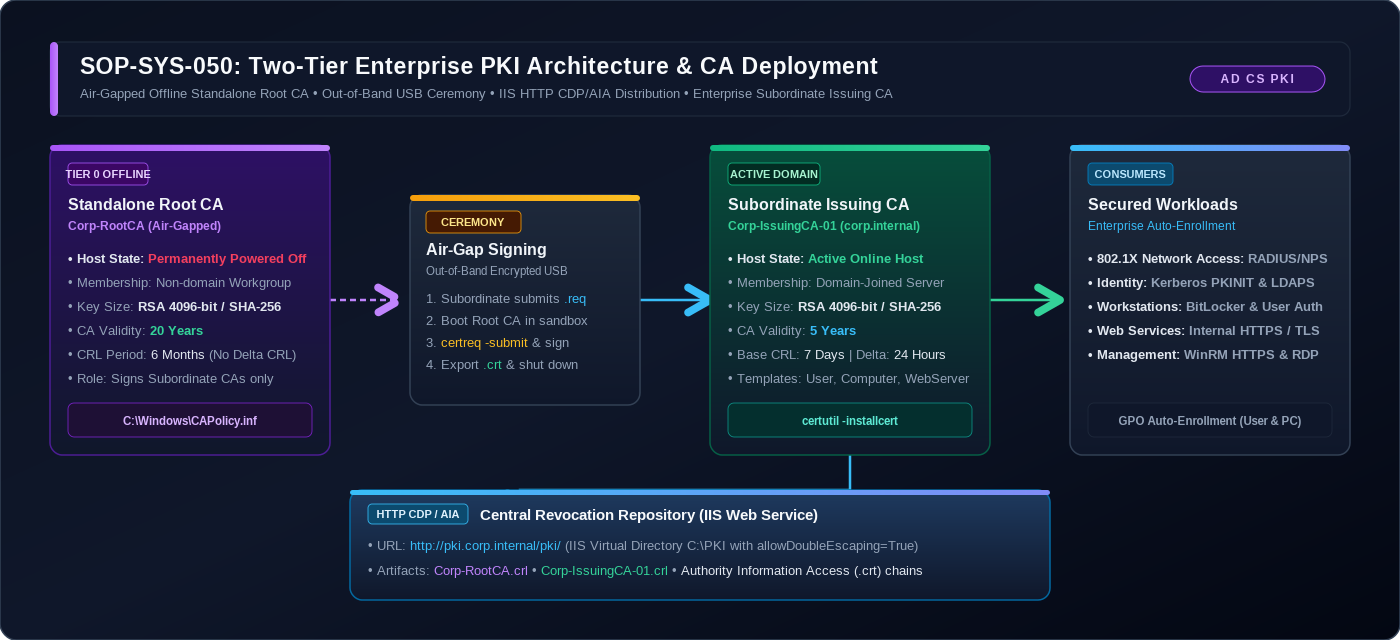
Two-Tier Enterprise PKI Topology: Offline standalone Root CA secured via air-gapped cryptographic signing, issuing subordinate certificates to domain-joined Enterprise Subordinate Issuing CAs, with distribution via HTTP CDP / AIA and automated GPO enrollment.
Cryptographic Specifications & Sizing
| Parameter | Offline Standalone Root CA | Enterprise Subordinate Issuing CA |
|---|---|---|
| Common Name (CN) | Corp-RootCA | Corp-IssuingCA-01 |
| Domain Membership | Workgroup (Air-Gapped / Virtual Disk Disconnected) | Domain Member (corp.internal) |
| Cryptographic Provider | RSA #Microsoft Software Key Storage Provider | RSA #Microsoft Software Key Storage Provider (or HSM) |
| Key Length | 4096-bit | 4096-bit (Minimum 3072-bit) |
| Hash Algorithm | SHA-256 | SHA-256 |
| CA Validity Period | 20 Years | 5 Years |
| CRL Distribution Points | HTTP Web Virtual Directory (http://pki.corp.internal/pki/) | HTTP Web Virtual Directory + LDAP fallback |
Execution: Phase 1 — Offline Standalone Root CA Setup
Perform on the isolated, non-domain joined bare-metal server or disconnected virtual machine.
Create Root CAPolicy.inf Configuration
Root CA PolicyPlace the CAPolicy.inf file into C:\Windows\CAPolicy.inf prior to role installation. This defines the cryptographic extension parameters, validity unit limits, and CRL generation schedules.
[Version]Signature="$Windows NT$"
[PolicyStatementExtension]Policies=InternalLegalPolicyCritical=FALSE
[InternalLegalPolicy]OID=1.3.6.1.4.1.99999.1.1Notice="Corp Internal Enterprise Root Certification Authority"
[CertsAndKeys]RenewalKeyLength=4096RenewalValidityPeriod=YearsRenewalValidityPeriodUnits=20CRLPeriod=MonthsCRLPeriodUnits=6CRLDeltaPeriod=DaysCRLDeltaPeriodUnits=0Install and Initialize Standalone Root CA
AD CS InitializationInstall the Certificate Authority binary role and configure the Standalone Root Certification Authority using RSA 4096-bit SHA-256 cryptography.
# Install Certificate Services role binariesInstall-WindowsFeature Adcs-Cert-Authority -IncludeManagementTools
# Configure Standalone Root Certification AuthorityInstall-AdcsCertificationAuthority ` -CAType StandaloneRootCA ` -CryptoProviderName "RSA#Microsoft Software Key Storage Provider" ` -KeyLength 4096 ` -HashAlgorithmName SHA256 ` -CACommonName "Corp-RootCA" ` -ValidityPeriod Years ` -ValidityPeriodUnits 20Configure CDP and AIA Extension URLs on Root CA
CRL / AIA DefinitionDefine the static HTTP distribution points embedded in all issued certificates, configure CRL lifespans, restart the Certificate Service, and generate the initial CRL.
# Define primary HTTP Distribution Point (CDP)certutil -setreg CA\CRLPublicationURLs "1:C:\Windows\system32\CertSrv\CertEnroll\%3%8%9.crl\n2:http://pki.corp.internal/pki/%3%8%9.crl"
# Define primary HTTP Authority Information Access (AIA)certutil -setreg CA\CACertPublicationURLs "1:C:\Windows\system32\CertSrv\CertEnroll\%1_%3%4.crt\n2:http://pki.corp.internal/pki/%1_%3%4.crt"
# Set CRL Validity Period to 6 Monthscertutil -setreg CA\CRLPeriodUnits 6certutil -setreg CA\CRLPeriod "Months"certutil -setreg CA\CRLDeltaPeriodUnits 0certutil -setreg CA\CRLDeltaPeriod "Days"
# Restart CA service and publish initial CRLRestart-Service certsvccertutil -CRLExport Root Certificate and CRL for Active Directory
Air-Gap ExportCopy C:\Windows\System32\CertSrv\CertEnroll\Corp-RootCA.crt and Corp-RootCA.crl to an encrypted, write-blocked USB drive. Shut down and quarantine the Root CA VM/Host.
# Copy artifacts to removable air-gap drive (e.g., E:)Copy-Item "C:\Windows\System32\CertSrv\CertEnroll\Corp-RootCA.crt" -Destination "E:\"Copy-Item "C:\Windows\System32\CertSrv\CertEnroll\Corp-RootCA.crl" -Destination "E:\"
# Gracefully shut down Root CA hostStop-Computer -Force
Execution: Phase 2 — HTTP Web PKI Repository Setup
Deploy on internal IIS web server (pki.corp.internal on IP 10.10.10.45):
Deploy Web PKI Virtual Directory & Publish Root Artifacts
IIS CDP RepositoryProvision the HTTP revocation distribution repository on IIS, enable double-escaping for delta CRLs (+ symbol), and publish the Root CA certificate and CRL into Active Directory Domain Services.
# 1. Install IIS roleInstall-WindowsFeature Web-Server, Web-Http-Errors, Web-Http-Logging, Web-Stat-Compression -IncludeManagementTools
# 2. Create PKI virtual directoryNew-Item -ItemType Directory -Path "C:\PKI" -ForceImport-Module WebAdministrationNew-WebVirtualDirectory -Site "Default Web Site" -Name "pki" -PhysicalPath "C:\PKI"
# 3. Allow double escaping for delta CRLs (+)Set-WebConfigurationProperty -Filter "system.webServer/security/requestFiltering" -PSPath "IIS:\Sites\Default Web Site\pki" -Name "allowDoubleEscaping" -Value "True"
# 4. Copy the Root CA certificate and CRL into C:\PKI from the secure USB driveCopy-Item "E:\Corp-RootCA.crt" -Destination "C:\PKI\"Copy-Item "E:\Corp-RootCA.crl" -Destination "C:\PKI\"
# 5. Publish Root CA certificate and CRL to Active Directory Public Key Services containercertutil -dspublish -f "C:\PKI\Corp-RootCA.crt" RootCAcertutil -dspublish -f "C:\PKI\Corp-RootCA.crl" "Corp-RootCA"
Execution: Phase 3 — Enterprise Subordinate Issuing CA Setup
Perform on the domain-joined server CORP-CA01.corp.internal.
Configure Subordinate CAPolicy.inf & Request Certificate
Subordinate CSRPlace C:\Windows\CAPolicy.inf on the subordinate server and install the Enterprise Subordinate CA role, generating an offline certificate request file (C:\Corp-IssuingCA-01.req).
# Create Subordinate CAPolicy.inf@"[Version]Signature="`$Windows NT`$"
[PolicyStatementExtension]Policies=InternalLegalPolicyCritical=FALSE
[InternalLegalPolicy]OID=1.3.6.1.4.1.99999.1.2Notice="Corp Internal Enterprise Issuing Subordinate CA"
[CertsAndKeys]RenewalKeyLength=4096RenewalValidityPeriod=YearsRenewalValidityPeriodUnits=5CRLPeriod=DaysCRLPeriodUnits=7CRLDeltaPeriod=HoursCRLDeltaPeriodUnits=24"@ | Out-File -FilePath "C:\Windows\CAPolicy.inf" -Encoding ascii
# Install Subordinate CA role binariesInstall-WindowsFeature Adcs-Cert-Authority, Adcs-Web-Enrollment -IncludeManagementTools
# Request Subordinate CA certificateInstall-AdcsCertificationAuthority ` -CAType EnterpriseSubordinateCA ` -CryptoProviderName "RSA#Microsoft Software Key Storage Provider" ` -KeyLength 4096 ` -HashAlgorithmName SHA256 ` -CACommonName "Corp-IssuingCA-01" ` -OutputCertRequestFile "C:\Corp-IssuingCA-01.req"Sign CSR on Offline Root CA & Install Subordinate Certificate
Certificate SigningTransfer the request to the powered-on Offline Root CA, sign and issue the subordinate certificate, transfer it back to the Issuing CA, and install the certificate into AD CS.
# --- ON OFFLINE ROOT CA ---certreq -submit "E:\Corp-IssuingCA-01.req"# Take note of the RequestID displayed (e.g. 2)certutil -resubmit 2certreq -retrieve 2 "E:\Corp-IssuingCA-01.crt"# Shut down Offline Root CA
# --- ON ISSUING CA (CORP-CA01) ---certutil -installcert "E:\Corp-IssuingCA-01.crt"
# Configure CDP and AIA publication URLscertutil -setreg CA\CRLPublicationURLs "1:C:\Windows\system32\CertSrv\CertEnroll\%3%8%9.crl\n2:http://pki.corp.internal/pki/%3%8%9.crl\n10:ldap:///CN=%7%8,CN=%2,CN=CDP,CN=Public Key Services,CN=Services,%6%10"certutil -setreg CA\CACertPublicationURLs "1:C:\Windows\system32\CertSrv\CertEnroll\%1_%3%4.crt\n2:http://pki.corp.internal/pki/%1_%3%4.crt\n2:ldap:///CN=%7,CN=AIA,CN=Public Key Services,CN=Services,%6%11"
# Set CRL validity: Base CRL 7 Days, Delta CRL 24 Hourscertutil -setreg CA\CRLPeriodUnits 7certutil -setreg CA\CRLPeriod "Days"certutil -setreg CA\CRLDeltaPeriodUnits 24certutil -setreg CA\CRLDeltaPeriod "Hours"
# Restart Certificate Services and publish initial CRLRestart-Service certsvccertutil -CRL
Verification & PKI Health Validation
Execute Chain Validation and PKI Diagnostic Audit
Health CheckVerify that all CDP, AIA, and OCSP uniform resource locators resolve cleanly across the domain and launch the enterprise PKI diagnostic console.
# Validate complete certificate chain and URL fetchcertutil -verify -urlfetch "C:\Windows\System32\CertSrv\CertEnroll\Corp-IssuingCA-01.crt"
# Launch Enterprise PKI Health Snap-inpkiview.msc
Expected Result: In pkiview.msc, all status indicators for Root CA, Subordinate CA, CDP locations, and AIA locations show green checkmarks with status OK.
Rollback & Emergency CA Decommissioning
If the Subordinate CA private key is compromised or corrupted:
- Power up Offline Root CA in physical isolation.
- Revoke the Subordinate CA certificate:
certutil -revoke "SerialNumber" 1 # (1 = Key Compromise)certutil -CRL- Copy updated Root CRL to HTTP repository (
C:\PKI\Corp-RootCA.crl). - Publish updated CRL into Active Directory:
certutil -dspublish -f "C:\PKI\Corp-RootCA.crl" "Corp-RootCA"Your feedback keeps these production procedures accurate and battle-tested.