
Set Up Two Active Directory Domain Controllers with DNS
Build a new Active Directory Domain Services (AD DS) forest with two writable Windows Server 2025 domain controllers. Both servers run DNS and Global Catalog. You will create the forest on DC01, add DC02 to the same domain, verify directory and SYSVOL replication, and prove that a client can use either server.
This walkthrough uses Windows Server 2025 Desktop Experience and elevated Windows PowerShell 5.1 on the indicated machine. The PowerShell commands are the main procedure; the accompanying illustrations show the equivalent console choices. Run each step separately, inspect its result, and continue only after its checks succeed. Promotion and renaming restart the server.
Deployment Plan
| Item | Example used throughout this guide |
|---|---|
| AD DNS domain / forest root | ad.example.com |
| NetBIOS domain | EXAMPLE |
| DC01 | DC01.ad.example.com — 10.20.0.10/24 |
| DC02 | DC02.ad.example.com — 10.20.0.11/24 |
| Gateway | 10.20.0.1 |
| AD site / subnet | HQ / 10.20.0.0/24 |
| Pilot client | Windows 11 Pro or Enterprise on the same network |
| Final client DNS servers | 10.20.0.10, 10.20.0.11 |
| DNS upstream in the example | 10.20.0.1, only if the router provides independent recursive DNS |
| Forest and domain functional level | Windows Server 2025; both DCs must support it |
example.com is a documentation domain. Substitute a subdomain of a domain your organization owns, and replace every example address before deployment. Resolve naming conflicts with existing internal and public DNS before creating the forest.
Plan Capacity, Failure Domains, and Connectivity
DesignPrepare two separately installed servers with unique names and machine identities. For a small lab, 2 virtual CPUs, 4 GB RAM, and an 80 GB OS disk per server are a starting allocation, not production sizing. Place production DCs on separate hosts and suitable independent storage and power paths. Use one production network interface per DC for this example. Keep IPv6 enabled unless your organization has a specific supported design.
Both DCs will accept directory changes and replicate them. DC02 is an additional DC in the same domain; it does not require a second forest or a second domain. Plan any network firewall rules for DC-to-DC, client-to-DC, and administration traffic using the service table below. Leave Windows Defender Firewall enabled and use the AD DS role’s service rules.
DC01: AD DS + DNS + Global Catalog  <-> directory, DNS partition, and SYSVOL replication <->DC02: AD DS + DNS + Global Catalog
Clients -> DNS on DC01 and DC02 -> AD service discoveryDC DNS servers -> approved upstream DNS -> external namesForest-root PDC Emulator -> approved NTP source(s)
❯ What to Verify
Two unique servers, approved domain/IP plan, console access,network rules, backup storage, and maintenance windows are ready.| Service / purpose | Destination ports to review on network firewalls |
|---|---|
| DNS | TCP and UDP 53 |
| Kerberos / password changes | TCP and UDP 88 / TCP and UDP 464 |
| LDAP and DC Locator | TCP and UDP 389 |
| RPC Endpoint Mapper / dynamic RPC | TCP 135 / TCP 49152–65535 on current Windows Server |
| SMB and SYSVOL | TCP 445 |
| Global Catalog / AD Web Services | TCP 3268 / TCP 9389 |
| Windows Time | UDP 123 to the relevant time source |
| LDAPS / encrypted Global Catalog, when configured | TCP 636 / TCP 3269; require appropriate certificates |
Scope rules to the intended systems, permit return traffic, and account for both directions of DC replication. This table helps review network firewalls; it is not a replacement for Windows’ service-aware host firewall configuration. See Microsoft’s AD firewall guidance and service port reference.
Patch and Name Each Server
Both ServersInstall and activate Windows Server 2025, apply current updates, and finish any pending restart. Set the correct time zone and check the clock before promotion. Sign in with a local administrator and open Windows PowerShell as Administrator. Rename the first server DC01 and the second DC02. In the example below, change the name before running it on the second server.
# Run separately on each new server. Use DC02 on the second server.$NewName = 'DC01'Get-ComputerInfo | Select-Object WindowsProductName, OsVersion, CsNameGet-DateRename-Computer -NewName $NewName -Restart -ErrorAction Stop❯ What to Verify
After the restart, hostname returns DC01 on the first server andDC02 on the second. Updates are installed and clocks are accurate.Set Static Addresses and Bootstrap DNS
Both ServersAt the console, identify the actual NIC name with Get-NetAdapter. The commands below are for a fresh adapter using DHCP; they stop if a manual IPv4 address is already present so you can review that configuration first. DC01 initially uses its own address for DNS. DC02 uses only DC01 until DC02 has been promoted and replication verified. Do not use an Internet DNS server as an alternate on either NIC.
New-NetIPAddress changes connectivity and disables DHCP on that interface. If an address or gateway is already configured manually, use the adapter’s IPv4 properties to set the planned values rather than adding another address.
Get-NetAdapter | Select-Object Name, Status, InterfaceDescription$Nic = 'Ethernet' # Replace with this server's real adapter name.$Address = switch ($env:COMPUTERNAME) { 'DC01' { '10.20.0.10' } 'DC02' { '10.20.0.11' } default { throw 'Expected DC01 or DC02. Check the server before continuing.' }}$Adapter = Get-NetAdapter -Name $Nic -ErrorAction Stop$Manual = @(Get-NetIPAddress -InterfaceIndex $Adapter.ifIndex ` -AddressFamily IPv4 -ErrorAction SilentlyContinue | Where-Object { $_.PrefixOrigin -eq 'Manual' })if ($Manual.Count -gt 0) { throw 'A static address already exists. Review it in IPv4 properties first.'}New-NetIPAddress -InterfaceIndex $Adapter.ifIndex -IPAddress $Address ` -PrefixLength 24 -DefaultGateway '10.20.0.1' -ErrorAction StopSet-DnsClientServerAddress -InterfaceIndex $Adapter.ifIndex ` -ServerAddresses '10.20.0.10' -ErrorAction StopGet-NetIPConfiguration -InterfaceIndex $Adapter.ifIndex❯ What to Verify
DC01: 10.20.0.10/24, gateway 10.20.0.1, DNS 10.20.0.10DC02: 10.20.0.11/24, gateway 10.20.0.1, DNS 10.20.0.10Before DNS is installed on DC01, name resolution through it is unavailable.Install AD DS, DNS, and Management Tools
Both ServersRun this on each server in elevated Windows PowerShell. Installing the roles adds DNS and the deployment tools; it does not create a forest or promote the machine. Promotion configures the AD-integrated zones. If the feature result requests a restart, complete it before continuing. The GUI equivalent is Server Manager > Manage > Add Roles and Features > Active Directory Domain Services and DNS Server, including their management tools.
$Feature = Install-WindowsFeature -Name AD-Domain-Services, DNS ` -IncludeManagementTools -ErrorAction Stopif (-not $Feature.Success) { throw 'AD DS role installation did not succeed.' }$Feature | Select-Object Success, RestartNeeded, ExitCodeImport-Module ADDSDeployment -ErrorAction StopGet-Command Install-ADDSForest, Install-ADDSDomainController❯ What to Verify
Success is True. Any requested restart is complete, and both deploymentcommands are available. Neither machine has been promoted yet.Check the New Forest Prerequisites on DC01
DC01On DC01, prepare the forest parameters and securely enter a unique Directory Services Restore Mode (DSRM) password. Store it in your secret vault; it is a recovery credential separate from normal domain sign-in. The selected Windows Server 2025 functional levels require compatible DCs. The enum checks below stop the procedure if the installed deployment module does not recognize that level.
Keep this PowerShell session open for Step 6. Test-ADDSForestInstallation performs prerequisite checks; inspect every failure and warning before proceeding. This example deliberately does not create a parent DNS delegation. If other DNS infrastructure must resolve the new AD namespace, arrange an appropriate delegation or conditional forwarding with its owner.
if ($env:COMPUTERNAME -ne 'DC01') { throw 'Run this step on DC01.' }Import-Module ADDSDeployment -ErrorAction Stop$Command = Get-Command Install-ADDSForest -ErrorAction Stopforeach ($Parameter in 'ForestMode', 'DomainMode') { $EnumType = $Command.Parameters[$Parameter].ParameterType if ('Win2025' -notin [Enum]::GetNames($EnumType)) { throw 'Windows Server 2025 deployment support is required. Review the OS/module.' }}$ForestParameters = @{ DomainName = 'ad.example.com' DomainNetbiosName = 'EXAMPLE' ForestMode = 'Win2025' DomainMode = 'Win2025' InstallDns = $true CreateDnsDelegation = $false SafeModeAdministratorPassword = Read-Host 'DC01 DSRM password' -AsSecureString}Test-ADDSForestInstallation @ForestParameters -ErrorAction Stop❯ What to Verify
Prerequisite checks succeed. Domain name, NetBIOS name, functional levels,DNS installation, and any delegation warning have been reviewed.Promote DC01 and Create the Forest
DC01After Step 5 succeeds, run the installation command in the same session. Review the confirmation and allow the automatic restart. Default database, log, and SYSVOL paths are used for this small deployment. A production storage layout should be decided before promotion. After restart, sign in as EXAMPLE\Administrator with the built-in Administrator password used before this new-forest promotion. The separate DSRM password is for recovery.
For the equivalent wizard, use Server Manager’s notification flag > Promote this server to a domain controller > Add a new forest. Enter ad.example.com, choose the planned functional levels, keep DNS and Global Catalog enabled, supply the DSRM password, review the NetBIOS name and paths, and pass Prerequisites Check before selecting Install.
# DC01 only, in the session where Step 5 defined $ForestParameters.if ($env:COMPUTERNAME -ne 'DC01') { throw 'Run this step on DC01.' }if (-not (Get-Variable ForestParameters -ErrorAction SilentlyContinue)) { throw 'Re-run Step 5 and review its results before promoting.'}Install-ADDSForest @ForestParameters -ErrorAction Stop❯ What to Verify
DC01 restarts and hosts the new ad.example.com forest and DNS service.The administrator can sign in to the new domain.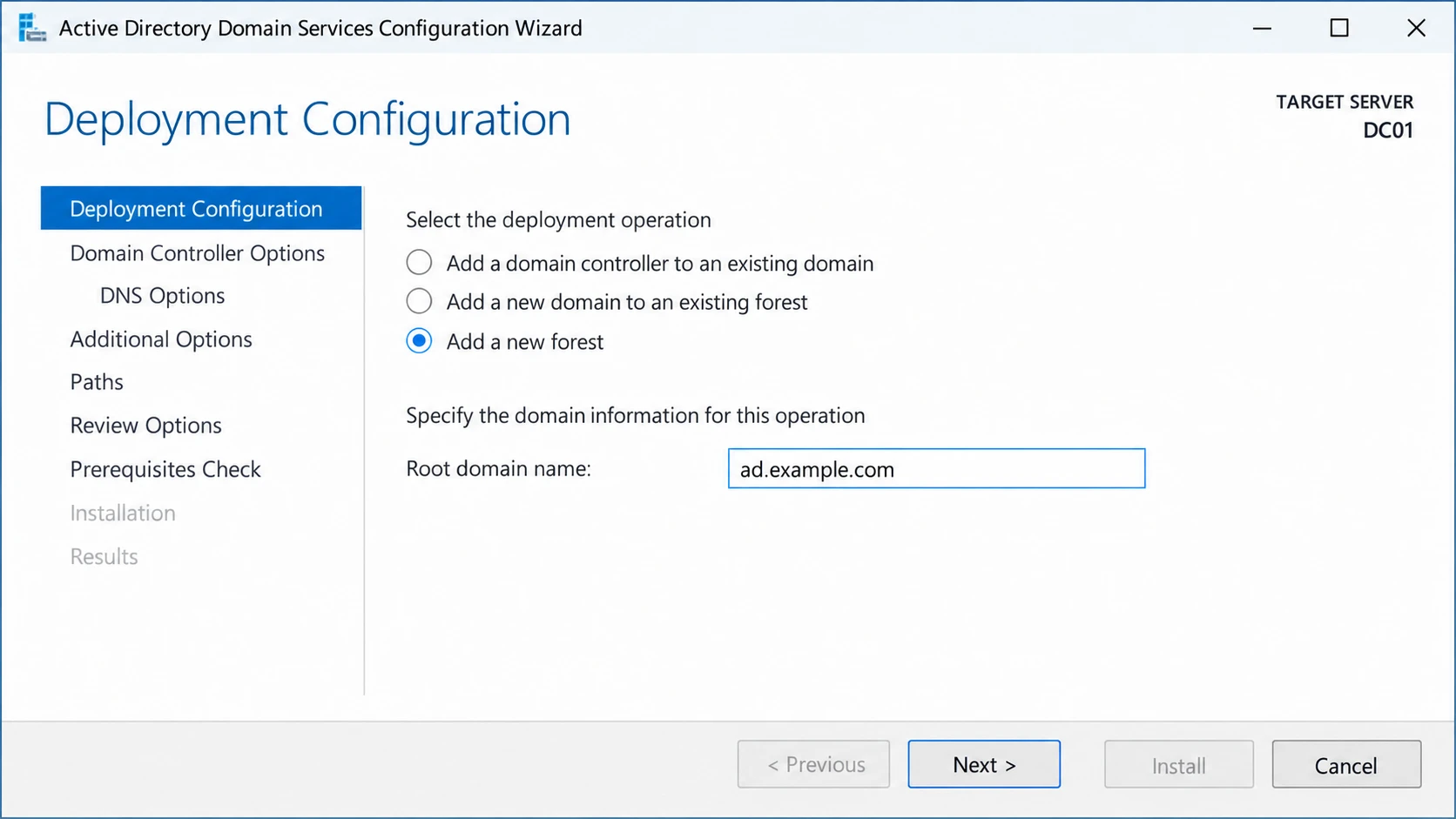
Illustration: DC01 creates the new forest. Use Add a domain controller to an existing domain when you reach DC02.
Verify DC01 Before Adding a Replica
DC01Open a new elevated Windows PowerShell session on DC01. Check the domain and forest, required services, SYSVOL and NETLOGON shares, and DNS locator records. Allow initial service startup to finish, then investigate persistent failures. A successful restart alone is not evidence that promotion completed correctly.
Import-Module ActiveDirectory -ErrorAction StopGet-ADDomain | Select-Object DNSRoot, NetBIOSName, DomainMode, PDCEmulatorGet-ADForest | Select-Object RootDomain, ForestMode, GlobalCatalogsGet-Service NTDS, DNS, Netlogon, DFSR, KdcGet-SmbShare -Name SYSVOL, NETLOGON -ErrorAction StopResolve-DnsName -Name 'DC01.ad.example.com' -Type A -Server '10.20.0.10'Resolve-DnsName -Name '_ldap._tcp.dc._msdcs.ad.example.com' ` -Type SRV -Server '10.20.0.10'❯ What to Verify
Domain: ad.example.com | NetBIOS: EXAMPLEForest/domain mode: Windows2025Forest / Windows2025DomainDC01 is a Global Catalog; the named services are running.SYSVOL and NETLOGON exist; the LDAP SRV query identifies DC01.Create the HQ Site Mapping and Reverse Zone
DC01In this fresh forest, rename Default-First-Site-Name to HQ and map 10.20.0.0/24 to it. This lets DC02 and clients locate their site correctly. Also create an AD-integrated reverse zone for the subnet, with secure dynamic updates and domain-wide DNS replication. The forward zones are created by promotion; do not create another independent copy on DC02.
Run this one-time configuration only for the example subnet and new forest. In the GUI, use Active Directory Sites and Services for the site/subnet, and DNS Manager > Reverse Lookup Zones > New Zone for the reverse lookup zone.
$FirstDC = 'DC01.ad.example.com'$Site = Get-ADReplicationSite -Identity 'Default-First-Site-Name' ` -Server $FirstDC -ErrorAction StopRename-ADObject -Identity $Site.DistinguishedName -NewName 'HQ' ` -Server $FirstDC -ErrorAction StopNew-ADReplicationSubnet -Name '10.20.0.0/24' -Site 'HQ' ` -Server $FirstDC -ErrorAction StopAdd-DnsServerPrimaryZone -NetworkId '10.20.0.0/24' ` -ReplicationScope Domain -DynamicUpdate Secure ` -ComputerName $FirstDC -ErrorAction StopGet-ADReplicationSubnet -Filter * -Properties Site | Select-Object Name, SiteGet-DnsServerZone | Select-Object ZoneName, IsDsIntegrated, DynamicUpdate❯ What to Verify
10.20.0.0/24 maps to HQ.0.20.10.in-addr.arpa is AD-integrated and uses secure dynamic updates.ad.example.com and _msdcs.ad.example.com are present as AD DNS zones.Prove DC02 Can Discover and Reach DC01
DC02On DC02, confirm that its DNS client still uses only 10.20.0.10 and that its clock is close to DC01’s. Query the existing domain through DC01. Check representative TCP services before promotion. These tests do not cover UDP or the full dynamic RPC range; use firewall logs and the prerequisite results to investigate those paths. DC02 can be promoted from its workgroup using domain credentials, so a separate domain-join operation is not required here.
if ($env:COMPUTERNAME -ne 'DC02') { throw 'Run this step on DC02.' }$FirstDCAddress = '10.20.0.10'Get-DnsClientServerAddress -AddressFamily IPv4Resolve-DnsName -Name 'DC01.ad.example.com' -Type A -Server $FirstDCAddressResolve-DnsName -Name '_ldap._tcp.dc._msdcs.ad.example.com' ` -Type SRV -Server $FirstDCAddressforeach ($Port in 53, 88, 135, 389, 445, 3268, 9389) { $Reachable = Test-NetConnection -ComputerName $FirstDCAddress ` -Port $Port -InformationLevel Quiet if (-not $Reachable) { throw "DC01 TCP port $Port is unreachable." } "DC01 TCP ${Port}: reachable"}❯ What to Verify
DC01 resolves to 10.20.0.10, its LDAP SRV record is returned, andthe listed TCP checks pass. DC02 is still using DC01 for DNS.Check the Additional DC Prerequisites
DC02On DC02, enter a credential authorized to add a DC to this domain. EXAMPLE\Administrator is used for this isolated example; use the approved deployment account in production. Enter and vault a separate DC02 DSRM password. Request DNS, Global Catalog, the HQ site, and DC01 as the initial replication source. With DNS already installed in Step 4, SkipAutoConfigureDns preserves the bootstrap DNS client settings until the health checks pass. Forwarders are configured explicitly later. Run the prerequisite check and review its results before Step 11. Keep this session open.
if ($env:COMPUTERNAME -ne 'DC02') { throw 'Run this step on DC02.' }Import-Module ADDSDeployment -ErrorAction Stop$ReplicaParameters = @{ DomainName = 'ad.example.com' Credential = Get-Credential -UserName 'EXAMPLE\Administrator' ` -Message 'Account authorized to deploy DC02' InstallDns = $true SkipAutoConfigureDns = $true NoGlobalCatalog = $false SiteName = 'HQ' ReplicationSourceDC = 'DC01.ad.example.com' CreateDnsDelegation = $false SafeModeAdministratorPassword = Read-Host 'DC02 DSRM password' -AsSecureString}Test-ADDSDomainControllerInstallation @ReplicaParameters -ErrorAction Stop❯ What to Verify
Prerequisite checks succeed for a writable replica in ad.example.com.HQ, DC01 as the source, DNS, and Global Catalog are selected.Promote DC02 into the Existing Domain
DC02Run the replica installation command after Step 10 passes. Read the confirmation and allow the restart. In Server Manager’s wizard, choose Add a domain controller to an existing domain, enter ad.example.com and deployment credentials, select DNS server and Global Catalog, leave Read only domain controller unchecked, select HQ, and use DC01 as the replication source under Additional Options. Complete the prerequisite checks and install. If you use the wizard, inspect DC02’s NIC DNS settings after restart and retain DC01 as its DNS server until Step 12 succeeds.
# DC02 only, in the session where Step 10 defined $ReplicaParameters.if ($env:COMPUTERNAME -ne 'DC02') { throw 'Run this step on DC02.' }if (-not (Get-Variable ReplicaParameters -ErrorAction SilentlyContinue)) { throw 'Re-run Step 10 and review its results before promoting.'}Install-ADDSDomainController @ReplicaParameters -ErrorAction Stop❯ What to Verify
DC02 restarts as a writable DC in the existing ad.example.com domain.No second forest or separate domain has been created.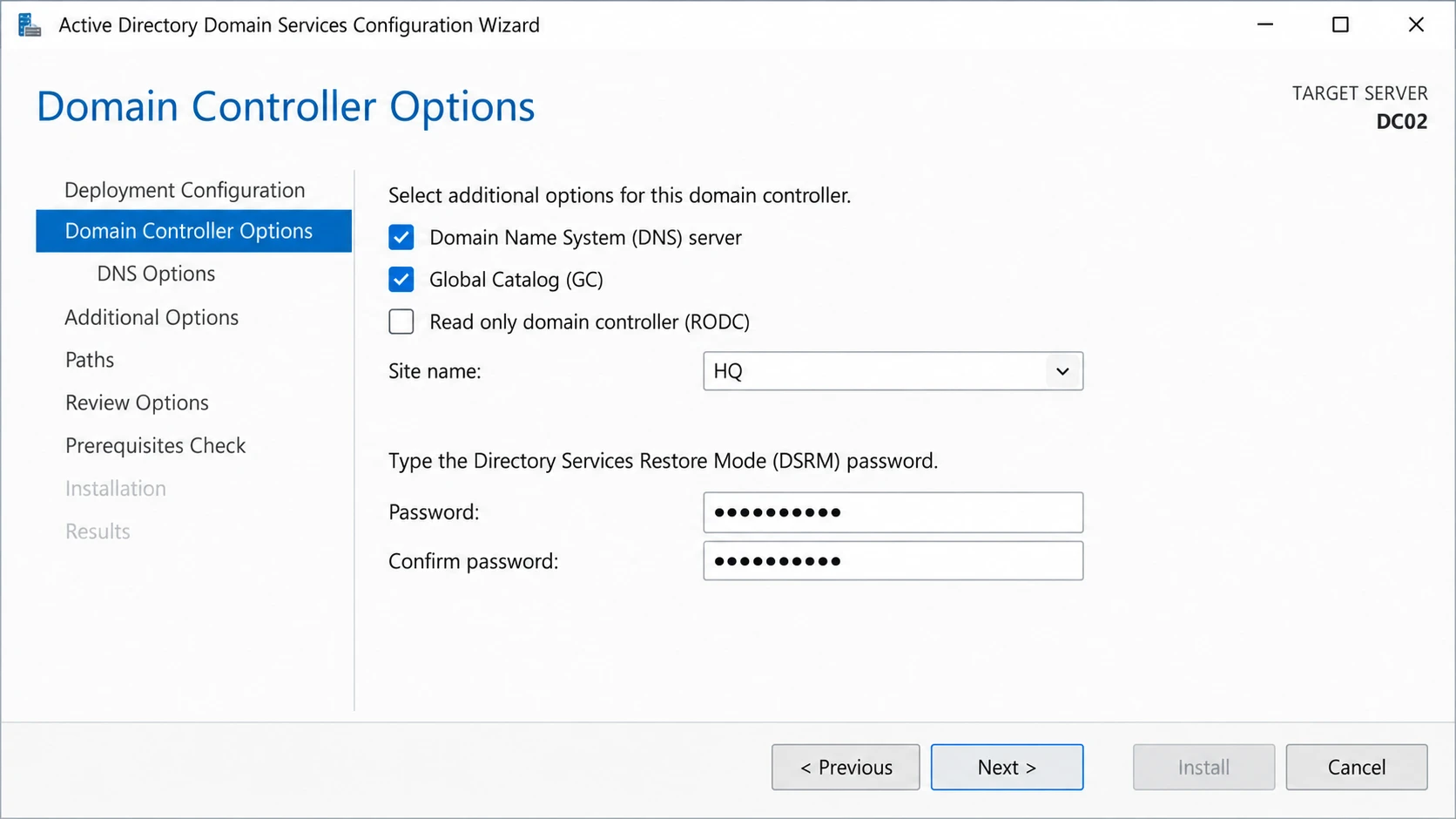
Illustration: DC02 is a writable DNS-hosting Global Catalog in HQ. Use a unique DSRM password for this server.
Verify Replication, DNS, and SYSVOL on Both DCs
Health GateFrom an elevated domain administrator session, confirm that both DCs are discoverable in HQ and are Global Catalogs. Review repadmin for each naming context, including DomainDnsZones and ForestDnsZones. Run dcdiag and inspect its named tests, rather than treating its process exit code as a complete health verdict. Its DNS checks can create a temporary diagnostic record to test updates. On each DC locally, confirm SYSVOL and NETLOGON shares.
Initial synchronization takes time. Persistent replication failures, missing shares, or failed Advertising, Services, DNS, or NetLogons tests must be resolved before changing DC02 to use its own DNS or onboarding clients. Check Directory Service, DNS Server, DFS Replication, and System event logs. Do not force SYSVOL recovery to hide a new deployment failure.
Get-ADDomainController -Filter * |    Sort-Object HostName |    Select-Object HostName, IPv4Address, Site, IsGlobalCatalogrepadmin.exe /replsummaryrepadmin.exe /showrepl DC01repadmin.exe /showrepl DC02dcdiag.exe /e /test:Advertising /test:Services /test:SysVolCheck /test:NetLogonsdcdiag.exe /e /test:DNS /v
# Run locally on each DC:Get-SmbShare -Name SYSVOL, NETLOGON -ErrorAction Stop
❯ Representative Healthy Results
HostName             IPv4Address  Site IsGlobalCatalog--------             -----------  ---- ---------------DC01.ad.example.com  10.20.0.10   HQ   TrueDC02.ad.example.com  10.20.0.11   HQ   True
repadmin: no failed replication attempts; recent success for all partitions.dcdiag: relevant tests pass; both DCs expose SYSVOL and NETLOGON.These are representative expectations, not captured deployment results.Set the Final DNS Client Order on Both DCs
DNS ResilienceAfter Step 12 succeeds, give each DC the other DC as preferred DNS and its own static IP as alternate. This is the chosen design for the two servers in the same site. Run the block on each server, using its actual NIC name. Refresh host and Netlogon service registrations, then verify the addresses shown by Get-DnsClientServerAddress.
$Nic = 'Ethernet' # Use the real adapter name on this DC.$DnsServers = switch ($env:COMPUTERNAME) { 'DC01' { @('10.20.0.11', '10.20.0.10') } 'DC02' { @('10.20.0.10', '10.20.0.11') } default { throw 'Expected DC01 or DC02.' }}Set-DnsClientServerAddress -InterfaceAlias $Nic ` -ServerAddresses $DnsServers -ErrorAction StopRegister-DnsClient -ErrorAction Stopnltest.exe /dsregdnsif ($LASTEXITCODE -ne 0) { throw 'Netlogon DNS registration failed.' }Get-DnsClientServerAddress -InterfaceAlias $Nic -AddressFamily IPv4❯ What to Verify
DC01 DNS order: 10.20.0.11, 10.20.0.10DC02 DNS order: 10.20.0.10, 10.20.0.11No public or ISP resolver appears in the DC NIC DNS list.Configure Upstream Resolution and Check Both DNS Copies
DNS ValidationOn each DC, configure approved recursive DNS forwarders. The example assumes 10.20.0.1 actually provides that service independently; substitute your real upstream servers, preferably with redundancy. Do not forward DC01 to DC02 and DC02 back to DC01 as an Internet resolution path. Set and inspect forwarders on each DNS server instead of assuming AD zone replication copies the server’s forwarder configuration.
Use DNS Manager to confirm both forward zones and the reverse zone on both servers. Query A, PTR, and LDAP SRV records directly against each DNS server. The SRV query should return both DCs after registration and replication. Missing PTR records need a registration/zone check; a reverse zone helps diagnosis but does not replace the forward records AD requires.
# Run on each DC; replace with reachable, approved upstream resolver(s).$Forwarders = @('10.20.0.1')Set-DnsServerForwarder -IPAddress $Forwarders -PassThru -ErrorAction StopGet-DnsServerForwarder
foreach ($DnsServer in '10.20.0.10', '10.20.0.11') {    "Testing DNS server $DnsServer"    Resolve-DnsName 'DC01.ad.example.com' -Type A -Server $DnsServer -ErrorAction Stop    Resolve-DnsName 'DC02.ad.example.com' -Type A -Server $DnsServer -ErrorAction Stop    Resolve-DnsName '10.20.0.10' -Type PTR -Server $DnsServer -ErrorAction Stop    Resolve-DnsName '10.20.0.11' -Type PTR -Server $DnsServer -ErrorAction Stop    Resolve-DnsName '_ldap._tcp.dc._msdcs.ad.example.com' `        -Type SRV -Server $DnsServer -ErrorAction Stop    Resolve-DnsName 'www.microsoft.com' -Type A -Server $DnsServer -ErrorAction Stop}
❯ What to Verify
Both DNS servers resolve DC01 and DC02 to their correct addresses.PTRs identify the matching FQDNs, and LDAP SRV records list both DCs.An approved external name resolves through each server.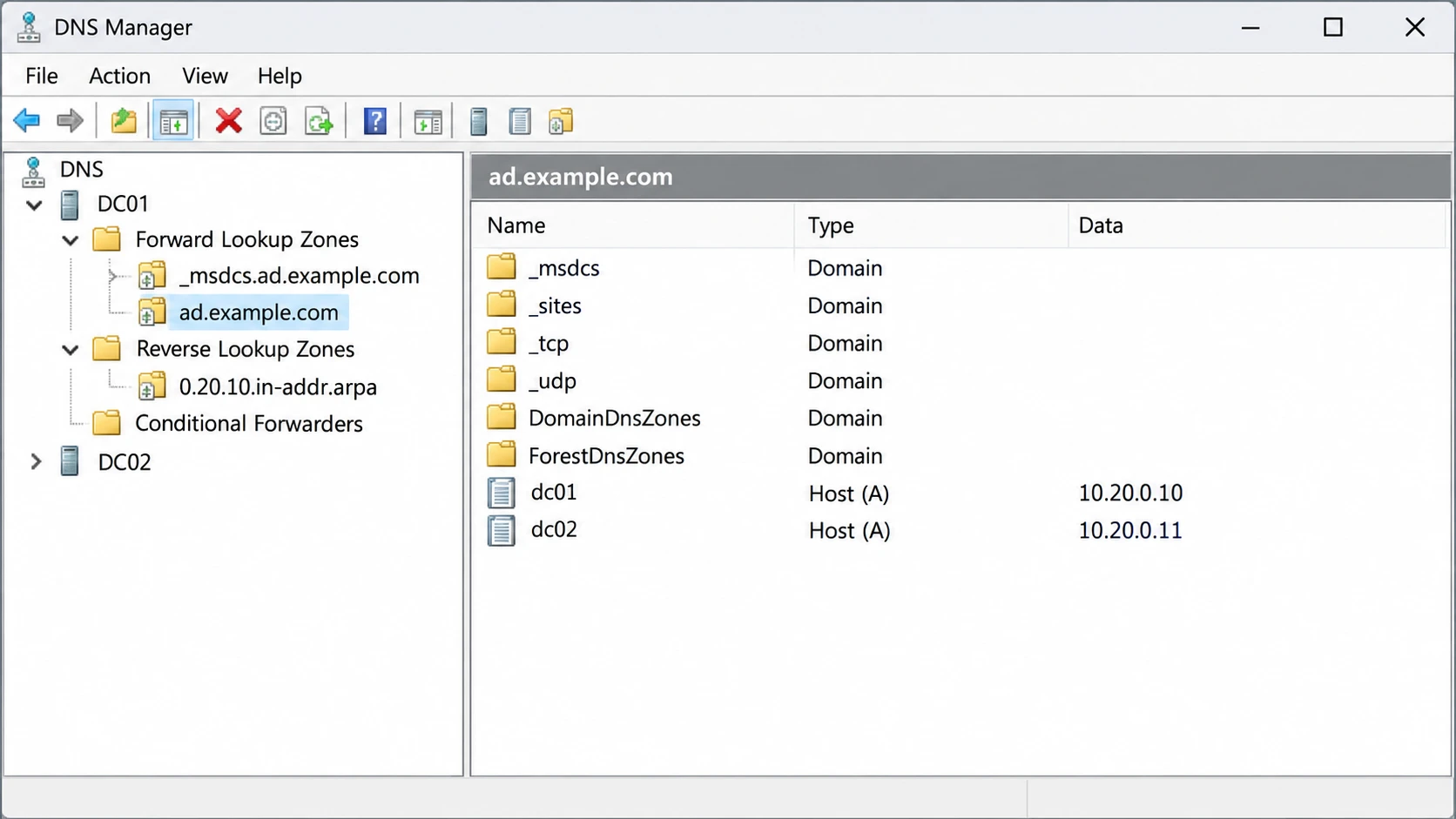
Illustration: DNS Manager shows the AD namespace and both DC host addresses. Inspect the same replicated zones on DC02.
Configure the Forest-Root PDC Time Source
Time ServiceFind the PDC Emulator and configure that server to use approved NTP sources. In this new single-domain forest it initially resides on DC01, but verify ownership. Enter the approved source names when prompted; three independent suitable time servers are preferable where available. The command sets NTP client mode for each peer and marks this DC as a reliable source for its domain hierarchy.
DC02 and domain members should follow the AD hierarchy, normally shown as NT5DS in their Windows Time configuration. On DC02, inspect w32tm /query /configuration and /query /source. Resolve any Group Policy override or competing hypervisor time design with its owner. If the PDC role moves later, update time configuration for the new owner.
$Pdc = (Get-ADDomain -Identity 'ad.example.com').PDCEmulatorif ($env:COMPUTERNAME -ine ($Pdc -split '\.')[0]) { throw "Run the configuration step on the PDC Emulator: $Pdc"}$NtpServers = @((Read-Host 'Approved NTP hostnames or IPv4 addresses, separated by spaces').Trim() -split '\s+')foreach ($Server in $NtpServers) { if ($Server -notmatch '^[A-Za-z0-9][A-Za-z0-9.-]*$') { throw 'Enter only approved NTP names or IPv4 addresses, separated by spaces.' }}$PeerList = ($NtpServers | ForEach-Object { "$_,0x8" }) -join ' 'w32tm.exe /config "/manualpeerlist:$PeerList" /syncfromflags:manual /reliable:yes /updateif ($LASTEXITCODE -ne 0) { throw 'Windows Time configuration failed.' }Restart-Service W32Time -ErrorAction Stopw32tm.exe /resync /rediscoverif ($LASTEXITCODE -ne 0) { throw 'Time resynchronization failed. Check NTP reachability.' }w32tm.exe /query /sourcew32tm.exe /query /status❯ What to Verify
The PDC uses an approved upstream source and has a recent successful sync.DC02 follows the domain hierarchy. A local free-running clock is notaccepted as the finished upstream synchronization result.See Microsoft’s forest-root PDC guidance and Windows Time tools. Review the peer strategy carefully if only two sources are available; Microsoft documents fallback-only selection for that case.
Create a Pilot OU and Standard Test User
Directory StructureOn DC01, create a workstation OU for the pilot and a separate OU for test users. Leave the domain controller computer accounts in the built-in Domain Controllers OU. Create a standard test account with a vault-managed password; it receives no administrative group membership here. In production, delegate computer joining to the intended workstation OU and use separate administration accounts. Run the DC02 query separately after normal replication; an immediate query can precede arrival of the new object.
New-ADOrganizationalUnit -Name 'Workstations' ` -Path 'DC=ad,DC=example,DC=com' -ProtectedFromAccidentalDeletion $true ` -Server 'DC01.ad.example.com' -ErrorAction StopNew-ADOrganizationalUnit -Name 'Pilot Users' ` -Path 'DC=ad,DC=example,DC=com' -ProtectedFromAccidentalDeletion $true ` -Server 'DC01.ad.example.com' -ErrorAction Stop$PilotPassword = Read-Host 'Password for the standard pilot user' -AsSecureStringNew-ADUser -Name 'AD Pilot User' -SamAccountName 'ad.pilot' ` -Path 'OU=Pilot Users,DC=ad,DC=example,DC=com' ` -AccountPassword $PilotPassword -Enabled $true ` -ChangePasswordAtLogon $true -Server 'DC01.ad.example.com' -ErrorAction Stop# Run separately after replication from DC01 to DC02 has completed.Get-ADUser -Identity 'ad.pilot' -Server 'DC02.ad.example.com' -ErrorAction Stop❯ What to Verify
The new OUs exist. After replication, DC02 can read the standard pilotaccount created on DC01. Its password must be changed at first sign-in.Give Clients Both DNS Servers and Join a Pilot
Client ValidationConfigure DHCP option 006 with 10.20.0.10 and 10.20.0.11 and option 015 with ad.example.com on the actual DHCP service. DHCP does not have to run on a DC. Update static clients explicitly and renew pilot leases. Use only the domain DNS servers in the client DNS list.
On a Windows 11 Pro or Enterprise pilot client, use the block below with its real NIC name and an account authorized to join computers to the Workstations OU. In the isolated lab, the deployment administrator can perform this one operation; for production use the delegated join account. After restart, sign in as the standard pilot user and change its password. Check DNS discovery, secure channel, policy, and SYSVOL access.
# Run on the pilot Windows client, not on either DC.$Nic = 'Ethernet'Set-DnsClientServerAddress -InterfaceAlias $Nic ` -ServerAddresses '10.20.0.10', '10.20.0.11' -ErrorAction StopResolve-DnsName '_ldap._tcp.dc._msdcs.ad.example.com' -Type SRV -ErrorAction StopAdd-Computer -DomainName 'ad.example.com' ` -OUPath 'OU=Workstations,DC=ad,DC=example,DC=com' ` -Credential (Get-Credential -Message 'Account authorized to join this workstation') ` -Restart -ErrorAction Stop# After restart, on the pilot client; elevate for the secure-channel check.nltest.exe /dsgetdc:ad.example.com /forceTest-ComputerSecureChannel -Verbosegpresult.exe /rGet-ChildItem '\\ad.example.com\SYSVOL'❯ What to Verify
The client joins the Workstations OU and the pilot user signs in.DC discovery succeeds, the secure-channel check returns True, andSYSVOL and expected Group Policy information are available.Back Up Both DCs and Protect Recovery Credentials
RecoveryConfigure recurring application-aware backups, including system state and a suitable full-server recovery strategy, for both DCs. Keep protected copies outside their host/storage failure domain, with retention, alerting, and an isolated restore drill. Record DSRM password custody, backup access, and recovery ownership. Backups contain directory secrets and must be protected accordingly.
The example below makes an initial system-state backup on each DC to an already provisioned dedicated F: volume. Change the drive letter to your approved target, check free space, and review the confirmation. It does not format disks or create a recurring schedule. A successful backup job still needs an independently rehearsed recovery procedure.
# Run separately on each DC with an approved backup target already attached.$Feature = Install-WindowsFeature Windows-Server-Backup -ErrorAction Stopif (-not $Feature.Success) { throw 'Windows Server Backup installation failed.' }if (-not (Test-Path -LiteralPath 'F:\')) { throw 'Provision and review the approved backup target before continuing.'}Get-Volume -DriveLetter F | Select-Object DriveLetter, SizeRemaining, Sizewbadmin.exe start systemstatebackup -backupTarget:F:if ($LASTEXITCODE -ne 0) { throw 'System-state backup did not complete successfully.' }wbadmin.exe get versions -backupTarget:F:❯ What to Verify
Both DCs have successful, identifiable backups and monitored recurring jobs.Off-host copies, DSRM credentials, and an isolated recovery plan are available.Prove Single-DC Availability and Complete the Handover
CloseoutIn a lab or approved maintenance window, shut down DC01 cleanly and confirm fresh DNS queries, DC discovery, and live domain access through DC02. Use an authorized fresh sign-in test; a cached desktop logon alone does not prove AD availability. Restore DC01 and verify replication before repeating the test with DC02 down. Never take both offline together for this check, and do not seize FSMO roles for a planned short outage.
Harden both servers with the appropriate Windows Server DC baseline after compatibility review, use separate privileged accounts, restrict interactive administration, monitor AD/DNS/DFSR/time/backup health, and patch one DC at a time. Record the PDC/FSMO owners and their operational limits: two DCs do not make every FSMO-dependent operation available during an owner outage. Review AD Recycle Bin and recovery policies through a separate planned change.
# On the pilot client while DC01 is down in the approved test:Resolve-DnsName '_ldap._tcp.dc._msdcs.ad.example.com' `    -Type SRV -Server '10.20.0.11' -ErrorAction Stopnltest.exe /dsgetdc:ad.example.com /forceTest-ComputerSecureChannel -VerboseGet-ChildItem '\\DC02.ad.example.com\SYSVOL'
# After both DCs are back, on an administrative session:repadmin.exe /replsummaryGet-ADDomain | Select-Object PDCEmulator, RIDMaster, InfrastructureMasterGet-ADForest | Select-Object SchemaMaster, DomainNamingMaster
❯ Acceptance Checklist
[ ] Both writable DCs, DNS servers, and Global Catalogs are healthy.[ ] AD/DNS partitions and SYSVOL replicate; HQ subnet mapping is correct.[ ] Clients use both AD DNS servers and can discover the surviving DC.[ ] PDC time source, backups, alerts, and recovery credentials are documented.[ ] Each one-DC outage test passes; both DCs recover and replicate afterward.[ ] Hardening, access ownership, patching, and restore drills are assigned.If a Check Fails
| Symptom | Check first |
|---|---|
| DC02 cannot find the domain | Its NIC must use DC01 DNS; query the LDAP SRV record directly against 10.20.0.10. |
| Promotion reports RPC unavailable | Review TCP 135, dynamic RPC, routing, host/network firewall logs, name resolution, and source health. A ping or TCP 389 check alone is insufficient. |
| DNS or SYSVOL is missing after promotion | Check initialization and replication events and the matching dcdiag tests. Keep clients off the unfinished deployment. |
| AD names resolve but external names fail | Test the approved forwarders, recursion/root-hint policy, and their outbound DNS path independently on both servers. |
| Authentication or secure-channel checks fail | Verify DNS, time, client domain membership, and the exact error; do not repair or rejoin blindly. |
| Client sign-in works only with one DC | Inspect both DNS lists, DHCP renewal, SRV registration, replication, and actual online authentication. |