
Troubleshoot Microsoft Entra Cloud Sync: Agents, Object Provisioning, and Quarantine
A user exists in Active Directory but is missing from Microsoft Entra ID, an attribute stops updating, or an entire synchronization job enters quarantine. This runbook helps a senior administrator identify the failing layer, preserve evidence, and make one reviewed repair before validating the normal provisioning cycle.
The procedure targets an existing AD to Microsoft Entra ID Cloud Sync configuration. Confirm the direction and product before starting. Microsoft Entra Connect Sync has a different scheduler and diagnostic workflow; its ADSync commands do not control a Cloud Sync job. Password synchronization, device synchronization, and provisioning from Entra ID back to AD each need their own validation.
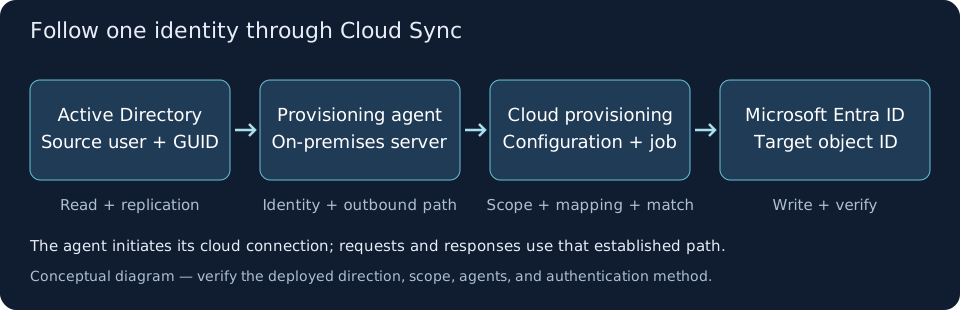
Identify the Configuration and Follow the Provisioning Path
ArchitectureCloud Sync keeps its synchronization configuration and orchestration in the cloud. The on-premises agent maintains an outbound connection, receives requests, and reads AD data for the provisioning service. Inspect the source directory, agent connection, scope and mapping decisions, and target object in that order. Local service state, portal agent status, and object provisioning results answer different questions.
In the Microsoft Entra admin center, open Entra ID > Entra Connect > Cloud sync. Select the existing configuration for the affected AD domain. Record its name, configuration/job identifier where displayed, enabled state, status, assigned domain and agents, and most recent successful activity. Check whether another synchronization configuration or Connect Sync deployment also manages the affected population; establish its ownership before changing anything.
Tenant ID:Configuration name and job ID:Direction: AD to Microsoft Entra IDSource domain and forest:Agent server names and portal status:Affected source objectGUID and cloud object ID, if present:Incident start and last successful provisioning time, in UTC:Recent OU, group, mapping, network, or account changes:Other sync configurations covering these objects:❯ What to Record
One known configuration owns the incident investigation.The source directory, agent hosts, and target tenant are unambiguous.Compare Local Agent State with the Portal
Agent HealthRun the following from an elevated Windows PowerShell session on an affected agent host. Read the actual service names, startup modes, logon identities, and executable paths. Then compare the provisioning agent and updater with their portal entries. A running process with an old or failing cloud connection can still leave the configuration unable to process objects.
The default executable path retains the older Azure AD branding. Verify it against the service path before reading its version. Use Microsoft’s version verification instructions and current supported release information when planning an update; capture the installed version first.
Get-CimInstance Win32_Service -ErrorAction Stop |  Where-Object {    $_.Name -eq 'AADConnectProvisioningAgent' -or    $_.DisplayName -match '(Azure AD|Entra).*(Agent Updater|Provisioning Agent)'  } |  Select-Object Name, DisplayName, State, StartMode, StartName, PathName
$agentExe = Join-Path $env:ProgramFiles `  'Microsoft Azure AD Connect Provisioning Agent\AADConnectProvisioningAgent.exe'Get-Item -LiteralPath $agentExe -ErrorAction Stop |  Select-Object FullName, @{Name='FileVersion'; Expression={$_.VersionInfo.FileVersion}}
# Recent Service Control Manager failures; match their messages to these services.Get-WinEvent -FilterHashtable @{  LogName = 'System'  ProviderName = 'Service Control Manager'  Level = 2, 3  StartTime = (Get-Date).AddHours(-2)} -MaxEvents 50 -ErrorAction Continue |  Select-Object TimeCreated, Id, LevelDisplayName, Message
❯ What to Verify
Name      : AADConnectProvisioningAgentState     : RunningStartMode : AutoStartName : CONTOSO\provAgentgMSA$
Compare with the actual service identity, installed version, and portal status.No matching recent event is not proof that the agent is healthy.Separate AD Reachability from the Cloud Connection
Network PathCheck AD DNS, DC discovery, and time from the agent host, then inspect the outbound proxy path. Select a concrete cloud endpoint hostname from the agent’s trace or current requirements; a wildcard suffix is not a hostname you can probe. Compare one failing agent with a healthy agent serving the same domain.
Outbound TCP 443 carries service communication; certificate revocation checks can require outbound HTTP 80. Use Microsoft’s current firewall and proxy requirements for your cloud. Investigate DNS chains, proxy authentication, certificate validation, TLS 1.2, and inspection policy rather than pinning a changing service to one observed IP.
Get-DnsClientServerAddress | Where-Object ServerAddressesResolve-DnsName -Type SRV '_ldap._tcp.dc._msdcs.contoso.com'nltest /dsgetdc:contoso.com /forceif ($LASTEXITCODE -ne 0) { Write-Warning 'DC discovery failed; retain the native output.' }w32tm /query /statusnetsh winhttp show proxy
# Replace with a concrete hostname from this agent's cloud connection evidence.$endpointHost = 'REPLACE_WITH_AGENT_ENDPOINT_FQDN'if ($endpointHost -eq 'REPLACE_WITH_AGENT_ENDPOINT_FQDN') {  throw 'Select a real endpoint from the agent trace or current requirements first.'}Resolve-DnsName -Name $endpointHost -ErrorAction StopTest-NetConnection -ComputerName $endpointHost -Port 443 -InformationLevel Detailed
❯ What to Verify
AD DNS and DC discovery return the expected domain controller.The time source and measured clock state match the organization's baseline.The selected cloud endpoint resolves; compare TCP, proxy, and TLS evidence.Read One Source User and Confirm Its Normal Scope
AD EvidenceStart with one affected user and a known DC in that user’s domain. Record the object’s GUID and distinguished name, UPN, account state, mail addresses, and source-anchor attribute without editing them. Compare the same GUID on another DC if an AD update may not have replicated. A successful read under your administrator account does not establish that the provisioning service account can read the same object.
Open the configuration’s Scoping filters and attribute mappings. Compare its selected OU/group distinguished names and mapping conditions with this user. Check recent moves and renames. For group-based AD-to-Entra scope, verify direct membership: nested group membership is not included by this scope mechanism. See the AD-to-Entra configuration reference.
Import-Module ActiveDirectory -ErrorAction Stop$dc = 'DC01.contoso.com'$adUser = Get-ADUser -Server $dc -Identity 'pilot.user' -Properties `  userPrincipalName, mail, proxyAddresses, memberOf, msDS-ConsistencyGuid, whenChanged `  -ErrorAction Stop
$adUser | Select-Object ObjectGUID, DistinguishedName, UserPrincipalName, Enabled,  Mail, WhenChanged, @{Name='ConsistencyGuidBytes'; Expression={$_.'msDS-ConsistencyGuid'}}$adUser.ProxyAddresses$adUser.MemberOf
# Optional: compare the same identity on another DC in this domain.$otherDC = 'DC02.contoso.com'Get-ADUser -Server $otherDC -Identity $adUser.ObjectGUID -Properties `  userPrincipalName, mail, proxyAddresses, whenChanged -ErrorAction Stop |  Select-Object ObjectGUID, UserPrincipalName, Mail, ProxyAddresses, WhenChanged
❯ What to Verify
The intended user is identified by objectGUID and its actual DN.AD replicas contain the expected source attributes.The saved Cloud Sync scope includes this user through the intended OU or direct group.Correlate the AD GUID with Provisioning Logs
Find the Failing StageOpen the configuration’s provisioning logs, set an incident time window, and search for the source objectGUID recorded in Step 4. Inspect the individual event’s source and target identities, status, error details, and processing steps. Preserve the activity/job identifiers and the full error message before retrying.
Classify the result. No relevant event requires checking the selected tenant, job, time window, source visibility, and scope. A skipped event needs its stated reason. A matching or target-write failure needs identity and attribute investigation. Repeated agent errors across unrelated users indicate a shared path. Use the details to establish whether the requested change reached the target; a create/update label alone can be misleading.
Source AD objectGUID:Source distinguished name:Target Entra object ID, if resolved:Configuration/job ID:Event time in UTC:Provisioning status and failing processing step:Exact error code and message:Activity/correlation identifier:Expected source value and observed target value:❯ What to Record
Example finding: the object was imported, but target matching failed.Next investigation: identify the intended existing cloud account and conflicting attribute.The actual provisioning details determine the next action.Test a Reviewed Pilot User with Provision on Demand
Controlled ChangeAfter the identity owner approves the pilot and expected target action, open the selected configuration’s Provision on demand page. Enter the user’s exact AD distinguished name from Step 4 and select Provision. Work through the import, scope information, matching, and final action details instead of treating a green result as the whole diagnosis.
Compare imported source values with the mapped target values. Record whether the operation selected the intended existing cloud object or created a new one. If the target or operation is unexpected, stop further attempts and investigate the matching decision. Afterwards, validate a normal scheduled cycle separately against the saved scope.
# Read-only preparation: copy the exact DN of the reviewed pilot from Step 4.$adUser | Select-Object ObjectGUID, DistinguishedName, UserPrincipalNamePortal: selected AD-to-Entra configuration > Provision on demandUser DN: copy the complete DistinguishedName from the reviewed source objectImport details: expected source valuesMatching details: intended existing target ID, or approved creationAction details: actual operation and final attribute valuesNormal-cycle scope: verify separately after this test❯ What to Verify
The pilot's import, matching, and target action are understood.Any error is tied to a processing stage and its exact details.A separate normal-cycle event is still required to prove scope and recovery.Investigate Attribute Collisions and Identity Matching
Object FailureWhen a log identifies a duplicate UPN or proxy address, find every competing identity before changing the value. Query users, groups, and contacts in the relevant AD domain, then repeat for the other domains/forests synchronized into this tenant. Review the corresponding Entra users and groups, including deleted objects when the error indicates a retained identity. An empty result in one domain does not establish tenant-wide uniqueness.
Choose the account that should own the identifier with the identity and messaging owners. Repair the erroneous value in its actual source of authority and check AD replication before retrying. For an InvalidSoftMatch or InvalidHardMatch error, establish the intended source-to-target relationship from the logs and configuration. Account recreation, migration, or a competing synchronization owner can require a dedicated recovery plan rather than an attribute cleanup.
# Exact values from the failure details; these are separate identities to review.
# Search this domain's live objects, including groups and contacts.# The AD cmdlet filter handles these values; do not build a raw LDAP string.Get-ADObject -Server $dc -Filter { userPrincipalName -eq $collisionUpn -or proxyAddresses -eq $collisionAddress} -Properties userPrincipalName, proxyAddresses, objectClass -ErrorAction Stop | Select-Object ObjectGUID, ObjectClass, DistinguishedName, UserPrincipalName, ProxyAddresses❯ What to Verify
Each competing value is associated with a stable object identity and an owner.The approved source correction is visible on the relevant AD replicas.Target matching is understood before any identity linkage is changed.Classify Quarantine and Review Pending Deletions
Job FailureOpen the configuration’s status details and preserve the error, affected population, and recent changes. Quarantine is a protective state that requires diagnosis. Repeated target authorization failures, unavailable agents, service communication failures, and a deletion threshold need different repairs. Compare exact codes with Microsoft’s Cloud Sync error reference.
For Delete threshold exceeded, inspect the provisioning logs’ StagedDelete entries and reconcile the proposed population with the change request. If the deletions were caused by an erroneous source or scope change, restore the intended source/scope and use the configuration’s Restart sync action after review. If the deletions are intentional, obtain approval for those exact objects before using Allow deletes. Keep a record of the configured threshold and its notification recipient.
Observed condition                      Investigation and repair ownerNo active/assigned agent                Agent registration, service, domain assignment, networkSkipped source object                   Saved scope, direct membership, source visibilityDuplicate attribute or matching error   Source owner, target identity, mapping and competing objectsQuarantine / delete threshold exceeded  Exact error, service health, proposed deletions, approved scope
Deletion review:  Number and IDs of staged objects  Why each object is leaving scope or being deleted  Approved change population versus staged population  Threshold and notification recipient  Recovery decision and approver
❯ What to Verify
The underlying failure and affected population are understood.Unexpected deletions are corrected at their source before the job is restarted.Intentional deletions have explicit approval for the reviewed identities.Recover the Job and Validate the Normal Provisioning Cycle
Recovery and ValidationApply the smallest reviewed repair for the identified cause. Preserve the previous scope/mapping and source values so you can restore the intended configuration if validation fails. For ordinary quarantine, clear it only after its cause is corrected. A restart or watermark reset can reevaluate a broad population; confirm the expected impact and outstanding deletions first. Use the existing configuration’s Cloud Sync controls, then observe its logs rather than repeatedly restarting it.
Verify the pilot through a normal scheduled provisioning event, checking the target ID and required attributes. Include a healthy in-scope control and a deliberately out-of-scope control that stays excluded. Compare the cloud object with the approved identity record. Where relevant, separately test the user’s actual authentication and application access without assuming that object provisioning validates those systems.
# Optional cloud read, from an approved Graph administration workstation in a dedicated PowerShell process.# Microsoft.Graph.Authentication and Microsoft.Graph.Users must already be installed.# Use approved consent for User.Read.All before connecting.$tenantId = 'REPLACE_WITH_TENANT_GUID'$cloudObjectId = 'REPLACE_WITH_CONFIRMED_CLOUD_USER_GUID'if ($tenantId -like 'REPLACE_*' -or $cloudObjectId -like 'REPLACE_*') {  throw 'Enter the tenant and intended cloud user IDs from the incident record first.'}$null = [guid]::Parse($tenantId)$null = [guid]::Parse($cloudObjectId)Connect-MgGraph -TenantId $tenantId -Scopes 'User.Read.All' -ContextScope Process -NoWelcometry {  $graphContext = Get-MgContext  if ($graphContext.TenantId -ne $tenantId) { throw 'Unexpected tenant context; stop.' }  $graphContext | Select-Object TenantId, Account, Scopes
  Get-MgUser -UserId $cloudObjectId -Property `    Id, UserPrincipalName, AccountEnabled, OnPremisesSyncEnabled, OnPremisesImmutableId,    OnPremisesLastSyncDateTime -ErrorAction Stop |    Select-Object Id, UserPrincipalName, AccountEnabled, OnPremisesSyncEnabled,      OnPremisesImmutableId, OnPremisesLastSyncDateTime
} finally {  # Release the process-scoped Graph context even if the read or tenant check fails.  Disconnect-MgGraph -ErrorAction SilentlyContinue}
❯ What to Verify
Tenant and target object ID match the approved identity record.Normal-cycle logs show the expected processing result and target values.The in-scope control still provisions; the excluded control remains excluded.Authentication/application checks pass where they are part of the incident.Package Evidence and Improve Agent Resilience
CloseoutIf the incident remains unresolved, collect a bounded support bundle from an affected agent and retain the portal event export. The bundled AADCloudSyncTools module must be present, its prerequisites available, and agent setup complete. The example exports existing logs without enabling verbose tracing. Review Get-Help for the installed command before running it; use Microsoft’s module reference for prerequisite installation and options.
After recovery, document the cause, repair, stable object IDs, and normal-cycle evidence. Review agent redundancy and independently verify each host’s portal and local health. Microsoft recommends three active agents for high availability. In a planned resilience drill, confirm surviving agents and configuration coverage before stopping one agent; observe normal provisioning, restore that agent, and verify its return. Multiple agent registrations alone are insufficient evidence of usable resilience.
# Run on the affected agent, in an elevated Windows PowerShell session.$modulePath = Join-Path $env:ProgramFiles `  'Microsoft Azure AD Connect Provisioning Agent\Utility\AADCloudSyncTools'Import-Module -Name $modulePath -ErrorAction StopGet-Help Export-AADCloudSyncToolsLogs -Full
$incidentPath = Join-Path $env:LOCALAPPDATA 'ConfigCorner\CloudSync-Incident01'if (Test-Path -LiteralPath $incidentPath) {  throw 'Incident directory already exists; select a fresh private location.'}New-Item -ItemType Directory -Path $incidentPath -ErrorAction Stop | Out-NullGet-Acl -LiteralPath $incidentPath | Format-List Owner, AccessToString
After confirming that only approved administrators can access this output location:
Export-AADCloudSyncToolsLogs -SkipVerboseTrace:$true -OutputPath $incidentPathGet-ChildItem -LiteralPath $incidentPath -File | Select-Object Name, Length, LastWriteTimeUtc❯ What to Retain
Support package: current agent logs and relevant event evidenceIncident record: job/tenant IDs, agent versions, source/target identities, UTC timesRecovery record: exact change and successful normal-cycle validationResilience follow-up: healthy agents, domain coverage, and a documented planned drill