
Fix a Stuck Windows Print Job: A Beginner Guide
Before you begin
- Applies to:Windows 11 when a print job stays in the queue.
- Where to start:Open the affected printer's queue on the PC where you submitted the job. Use PowerShell 7 or later for the optional service check.
- What you need:Start with your own print job. Restarting the print service requires administrator rights and can affect other users.
Guide tools
Troubleshooting Steps
Check the printer and its queue
Start hereOpen Settings > Bluetooth & devices > Printers & scanners. Choose the printer you intended to use, then Open print queue. Check for paper jams, offline status, a paused queue, and jobs ahead of yours. A shared printer may need help from its owner.
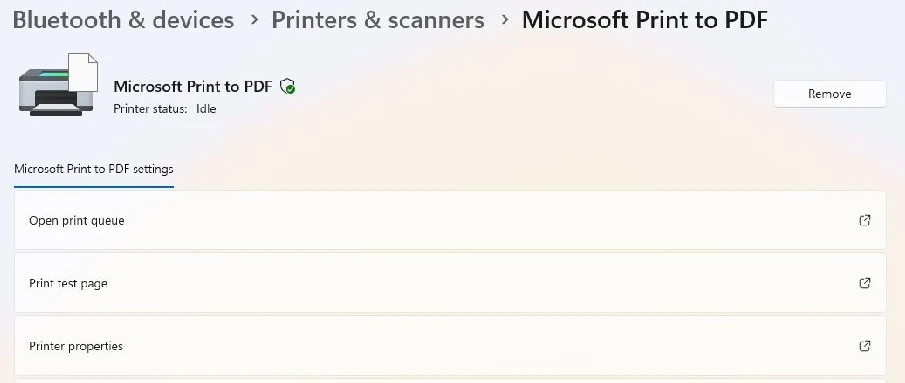
Figure 1: Select Open print queue on the settings page for the printer you are troubleshooting. This Windows 11 example shows Microsoft Print to PDF.
Cancel only the stuck job
Narrow the causeSelect your stuck job and choose Cancel. Wait for that job to disappear before retrying. If it stays at Deleting, check the local Print Spooler service. Running means the service is active. It does not prove that jobs are reaching the printer.
Get-Service -Name SpoolerPrint one test page
VerifyIn the selected printer’s settings, open Printer properties and choose Print Test Page. Verify the page comes out and the job clears from the queue. If the job remains stuck, an administrator can restart Print Spooler on the affected PC after checking for other active jobs. Escalate shared queue problems to the print server owner.
Reference
Your feedback keeps these production procedures accurate and battle-tested.