
Linux Directory Layout: Where Configuration, Logs, and Data Live: A Beginner Guide
Before you begin
- Applies to:Linux systems with Bash and common coreutils and util-linux commands.
- Where to start:Open Bash with your regular account on the system you want to inspect.
- What you need:Have a path in mind if you are looking for a particular file. Minimal installations and containers may omit some directories.
Guide tools
A path tells you both where something is located and, by convention, what role it serves. This guide extends the directory introduction in filesystems and mounts with a practical tour of configuration, application state, executable files and runtime data.
These commands inspect paths without changing files or mounts. A permission error is a reason to check access before running a command with more privileges.
Distinguish the Filesystem Root from the Root Account
OrientationThe single slash names the top of the directory tree. The root account is a privileged user, while /root is commonly that account’s home directory. Inspect directory metadata without attempting to enter another user’s home. Your current working directory is independent of your own home directory.
pwdprintf 'Your home directory: %s\n' "$HOME"ls -ld / /root "$HOME"Recognize the Main Directory Roles
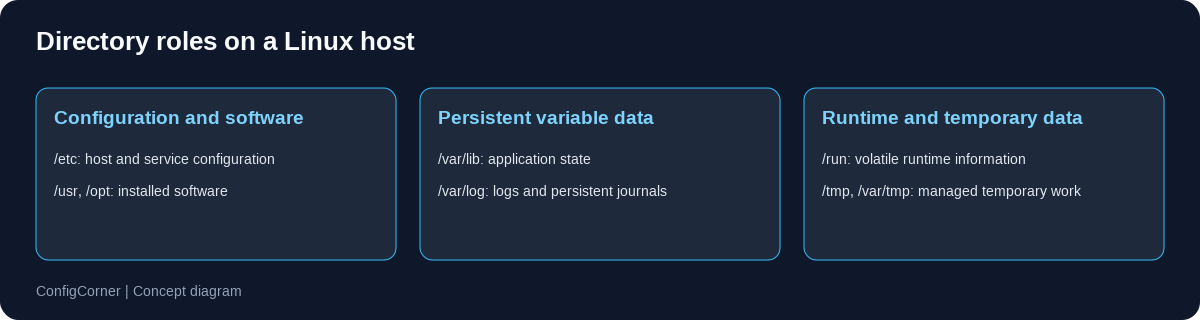
PracticeList the common top-level directories. A directory may itself be a mount point or contain paths mounted from other filesystems. The path name describes its intended role; it does not identify a physical disk or prove that data is backed up.
ls -ld /etc /usr /var /home /run /tmp /optfindmnt -T /var| Location | Usual purpose | Beginner rule |
|---|---|---|
/etc | Host and service configuration | Inspect the application documentation before editing. |
/usr | Distribution-managed software and shared resources | Use the package manager for managed files. |
/usr/local, /opt | Locally installed or additional software | Follow the installation’s ownership and upgrade model. |
/var/lib | Persistent application state | Treat databases and service data as application-owned. |
/var/log | Logs and, on some hosts, persistent journals | Use the intended reader and retention policy. |
/run | Volatile runtime information | Do not use it for a durable backup. |
/home | Regular users’ home directories | Respect ownership and private content. |
/tmp, /var/tmp | Temporary working data | Assume cleanup policies may remove files. |
Find Configuration Under /etc
PracticeInspect directory entries without printing secrets. The os-release file is a useful harmless example and may be a symlink into /usr/lib. Configuration may also use drop-in directories, includes, a database or a remote control plane; one file does not necessarily represent the complete effective configuration.
ls -ld /etcls -l /etc/os-releasecat /etc/os-releaseLocate Programs and Shared Software
PracticeFind the program selected by your current shell and inspect common software directories. On many current distributions /bin and /sbin are symlinks into /usr. Follow what the host actually uses instead of relocating files to match a diagram. Software in /opt may have its own layout.
command -v lstype -a lsls -ld /bin /sbin /usr/bin /usr/sbin /usr/local /optSeparate Application State, Logs and Cache
PracticeThese directories hold different types of variable data. A database under /var/lib requires application-aware backup and restore. Cached data may be regenerable, but deleting it can still disrupt a service. Logs may be files, journal entries or forwarded records, depending on the host.
ls -ld /var/lib /var/log /var/cachefindmnt -T /var/libfindmnt -T /var/logIdentify Volatile Runtime and Temporary Storage
PracticeInspect filesystem type and permissions for /run and temporary locations. Runtime PID files and sockets are often stored under /run. /tmp may be memory-backed or disk-backed. /var/tmp is intended for longer-lived temporary work, but local cleanup policy still matters. None of these locations is an approved place for your only backup copy.
ls -ld /run /tmp /var/tmpfindmnt -T /runfindmnt -T /tmpfindmnt -T /var/tmpRecognize Kernel Interfaces and Device Nodes
PracticeThe /proc and /sys trees expose process, kernel and device information through virtual filesystems. /dev contains device nodes and other special entries. Reading ordinary metadata differs from writing a control file or a device. Do not experiment with redirection into these trees.
ls -ld /proc /sys /devfindmnt -T /procfindmnt -T /sysfindmnt -T /devUnderstand Mount and Served-Data Locations
PracticeThe /mnt and /media conventions help organize mounted storage; /srv can hold data served by the host. Applications and organizations may choose other documented paths. Inspect each existing location and the filesystem beneath it. This loop reports absent directories without trying to create or mount anything.
for location in /mnt /media /srv; do if [ -d "$location" ]; then ls -ld -- "$location" findmnt -T "$location" else printf 'Not present on this host: %s\n' "$location" fidoneMap a Service to Its Declared Directories
Connect the ConceptsOn a systemd host, inspect the journald unit as a read-only example. The properties can show a unit file and explicitly declared storage directories. Empty properties do not prove that the program uses no files; applications can choose paths independently. Containers and systems without systemd may not support this inspection.
# Optional: only on a systemd host with this unit installed.systemctl show systemd-journald.service \ --property=FragmentPath --property=StateDirectory \ --property=CacheDirectory --property=LogsDirectory --property=RuntimeDirectoryChoose the Right Next Procedure
ReviewIdentify the software that owns the path, its documented purpose, the actual mount and the account allowed to manage it. Configuration edits, capacity cleanup, application backups and storage changes need different procedures. This tour created no files and changed no mounts, so there is no lab cleanup.
References: systemd file hierarchy, the installed hier(7) manual, and filesystem mounts. Continue with safe configuration editing or filesystem and mount basics.
Your feedback keeps these production procedures accurate and battle-tested.