
Systemd Targets for Planned Maintenance
Before you begin
- Applies to:Linux systems that use systemd. Use a disposable full Linux VM for the isolation and rescue exercises.
- Where to start:Start with read-only inspection. Use the hypervisor console and an approved outage for the VM exercises.
- What you need:Have administrator access, a working console, and a verified recovery login. WSL and containers cannot replace the VM for this boot exercise.
Guide tools
A systemd target groups units into a named operating state. Knowing which target is active helps you plan a service window and understand the difference between changing the current runtime state and choosing the state for a future boot.
Use a disposable full Linux VM with systemd, administrator access, a working hypervisor console, and a verified recovery login. The inspection steps are suitable for normal hosts. Perform target isolation and rescue-mode exercises only on the disposable VM during an approved outage. WSL and containers are not suitable substitutes for this boot-and-console exercise.
Confirm systemd and Record the Current State
Read OnlyRecord the default target, active targets and failed units before maintenance. Multiple targets normally remain active at once. The default is a boot selection and may differ from the runtime state. A degraded system has failed units to investigate; do not erase them with reset-failed just to make the display look clean.
ps -p 1 -o comm=systemctl --version | head -n 1systemctl get-defaultsystemctl list-units --type=target --state=active --no-pagersystemctl --failed --no-pagersystemctl is-system-running❯ Illustrative Output (Results Vary)
systemdsystemd 255 (255.4-1ubuntu8)multi-user.targetrunningUnderstand the Targets You Will Inspect
Operating StatesUse the unit definitions installed on the VM to inspect dependencies and whether isolation is allowed. A graphical installation usually builds on multi-user.target; a minimal server may not have a useful graphical environment. Rescue provides a minimal maintenance state, while emergency is more limited and can leave essential mounts unavailable.
systemctl cat multi-user.target graphical.target rescue.target emergency.targetsystemctl show multi-user.target rescue.target \ --property=Id --property=AllowIsolate --property=Requires --property=Wantssystemctl list-dependencies multi-user.target --no-pagerPrepare Console Access and Recovery Authentication
Required GateOpen the hypervisor console and demonstrate a normal login before the outage. Check how the distribution’s rescue shell authenticates. Many installations lock the root account, which can prevent a rescue login. Resolve recovery access through the distribution’s approved procedure or skip rescue mode. Do not weaken authentication as an incidental part of this guide.
Record the original default target, the expected application services, and the approved return target in the change record. The example below only inspects account status and running services.
sudo passwd -S rootsystemctl get-defaultsystemctl list-units --type=service --state=running --no-pagerloginctl list-sessionsPlan and Verify Application Shutdown
Maintenance PreparationDrain traffic and jobs, coordinate databases and cluster roles, and stop application services using their documented order. Do not stop an unknown workload simply because it appears in the running-service list. Inspect outstanding jobs, timers and socket activation so they do not surprise the maintenance plan. Record health checks to repeat afterward.
systemctl list-jobs --no-pagersystemctl list-timers --all --no-pagersystemctl list-sockets --all --no-pagerwhoEnter Multi-User Mode Temporarily on the Lab VM
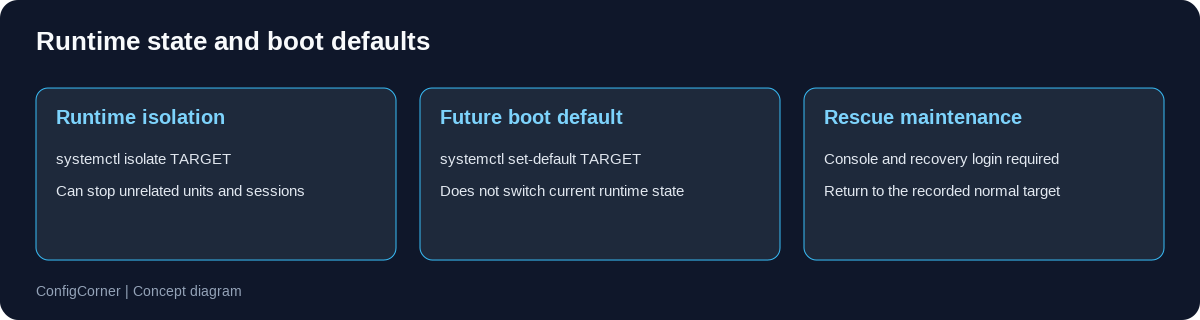
Console OnlyFrom the hypervisor console, isolate the non-graphical operating target. A graphical session may end immediately. On a server already in multi-user mode, there may be little visible change. This does not change the default selected for subsequent boots. Verify the active state using another console login if the first session closes.
sudo systemctl isolate multi-user.target# Inspect from the surviving or newly opened console session:systemctl is-active multi-user.targetsystemctl get-defaultsystemctl list-units --type=target --state=active --no-pagerEnter Rescue Mode for the Optional Lab Exercise
DisruptiveProceed only after the recovery-authentication and application-shutdown gates passed. Run this from the console. The command may terminate its caller while the rescue login appears. Authenticate at the rescue prompt using the previously verified procedure. If authentication is unavailable, use the planned VM recovery path rather than improvising password changes.
sudo systemctl rescueInspect Rescue State Without Making Repairs
Root ConsoleThe authenticated rescue shell normally runs as root; confirm identity before using it. Inspect active units and mount state. Rescue is not a filesystem repair command, and mounted writable filesystems are not safe targets for an offline repair utility. This exercise performs no disk or bootloader changes.
idsystemctl is-active rescue.targetsystemctl list-units --type=target --state=active --no-pagerfindmnt /systemctl --failed --no-pagerReturn to the Recorded Normal Runtime Target
Restore ServiceUse the exact normal target recorded earlier. These examples show two alternatives; run only the one appropriate to your VM. They are issued from the root rescue console without sudo. The rescue shell may close during the transition. Reconnect through the console and verify the expected services; dependency activation does not guarantee every application stopped before maintenance will restart.
# Server VM whose normal target is multi-user.target:systemctl isolate multi-user.target# Alternative for a VM with a verified graphical installation:systemctl isolate graphical.targetUnderstand and Optionally Change the Boot Default
Persistent ConfigurationChanging the default affects later boots; it does not switch the current target. Skip this step unless the maintenance change specifically requires a different default. On a disposable graphical VM, the example selects text-mode boot, then shows how to restore the previously recorded graphical default. A server originally using multi-user.target should retain that default.
# Optional persistent change on a graphical lab VM:systemctl get-defaultsudo systemctl set-default multi-user.targetsystemctl get-default# Restore only if the recorded original default was graphical.target:sudo systemctl set-default graphical.targetsystemctl get-defaultVerify the Host and Close the Maintenance Window
Post-Change ChecksRepeat the baseline checks, review warnings during the maintenance window, and compare actual applications with the recorded service list. Restore any deliberately paused jobs or traffic only after service owners confirm health. A new failure needs investigation; do not automatically restart everything or clear evidence. If you intentionally changed boot behavior, plan a separate authorized reboot and validate it through the console.
systemctl get-defaultsystemctl list-units --type=target --state=active --no-pagersystemctl --failed --no-pagersystemctl is-system-runningsudo journalctl -b --since '-30 minutes' -p warning --no-pagerRead the installed systemctl(1), systemd.special(7), systemd.unit(5) and sulogin(8) manuals. Upstream references: systemctl operations, special targets, and unit isolation settings. Continue with service basics or service failure diagnosis.
Your feedback keeps these production procedures accurate and battle-tested.