
Microsoft Entra Connect Staging Mode Deployment & High Availability Failover
Before you begin
- Applies to:Microsoft Entra Connect Sync on Windows Server 2022 or 2025, with an active server and a staging server.
- Where to start:Start on the active sync server and record its configuration. Use the standby for staging and validation before the approved cutover.
- What you need:Have access to both servers, authorized AD DS and Entra credentials, a protected configuration export, and a rollback plan. Confirm which server is allowed to export.
Guide tools
Scope, High Availability Architecture & Disaster Recovery
This standard operating procedure governs the deployment, lifecycle maintenance, and failover procedure for Microsoft Entra Connect (AADC) between on-premises Active Directory and Microsoft Entra ID.
In an enterprise topology, a single Entra Connect server is a single point of failure (SPOF). To guarantee continuous identity synchronization and zero-downtime server upgrades, a Standby Staging Server must be maintained in parallel.
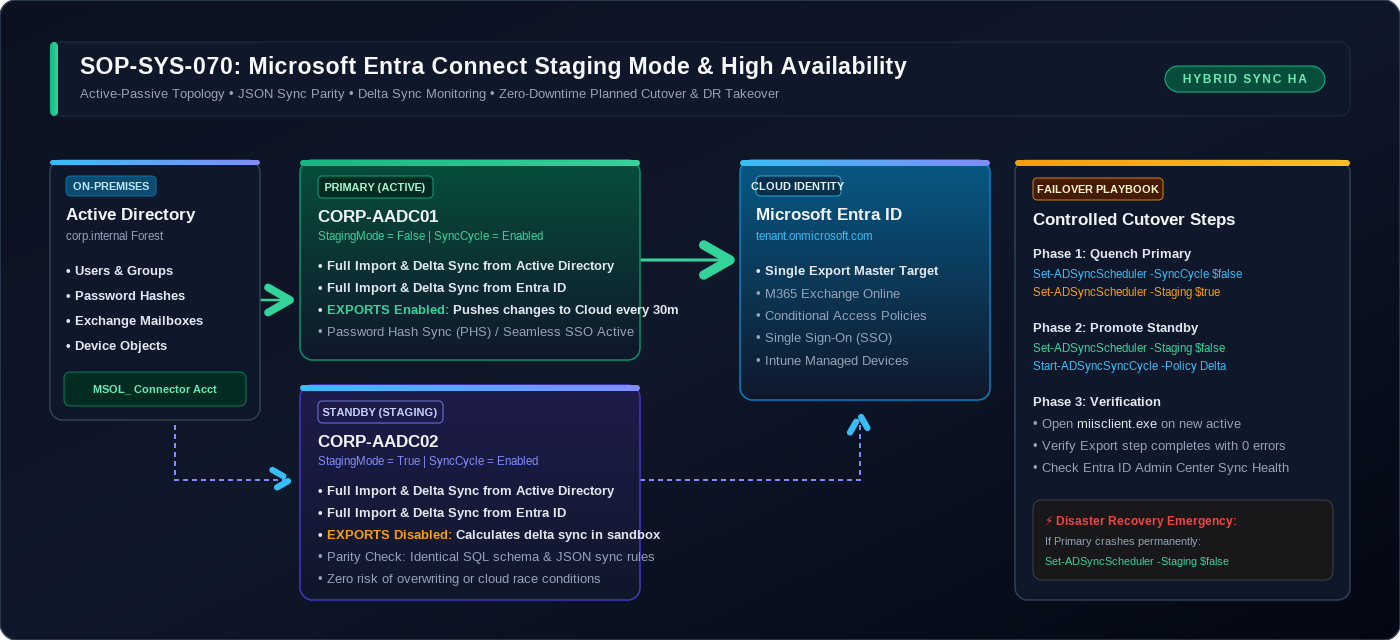
Microsoft Entra Connect High Availability Architecture: Active primary node handling exports alongside a parallel Staging standby server running delta sync without cloud exports, enabling instantaneous role inversion during disaster recovery or maintenance.
Pre-Flight Sizing & Prerequisites
| Requirement | Active Primary (CORP-AADC01) | Standby Staging (CORP-AADC02) |
|---|---|---|
| OS Version | Windows Server 2022 / 2025 | Windows Server 2022 / 2025 |
| AADC Version | Exact matching version (e.g. 2.3.6.0) | Exact matching version (2.3.6.0) |
| Database Engine | SQL Server 2022 Standard / LocalDB | SQL Server 2022 Standard / LocalDB |
| Service Account | Dedicated AD Connector account (MSOL_) | Dedicated AD Connector account (MSOL_) |
| Staging Mode State | Disabled (Exporting) | Enabled (Non-Exporting) |
Execution: Phase 1 — Deploying the Secondary Staging Server
Export Configuration from Active Primary Server
Configuration ExportOn CORP-AADC01, launch Microsoft Entra Connect and export the active synchronization rules, connector space filters, and attribute mappings to a secure JSON file.
# Open Entra Connect wizard and export configuration:# 1. Launch Microsoft Entra Connect# 2. Select Configure -> View or export current configurationInstall AADC on Secondary Server in Staging Mode
Staging DeploymentOn CORP-AADC02, launch the installer, import the JSON configuration, and ensure the Enable staging mode checkbox is selected before completing configuration.
Installation Steps on CORP-AADC02:1. Launch Entra Connect installer and click Customize.2. Select "Import synchronization settings" and select \\filesrv\admin\AADC-Config-Backup.json.3. Authenticate with Hybrid Identity Administrator credentials for Entra ID.4. MANDATORY CHECK on Ready to Configure page: - [x] Enable staging mode (MANDATORY: Prevents export collisions) - [x] Start the synchronization process when configuration completes5. Click Install.Execution: Phase 2 — Controlled Planned Failover Procedure
When performing scheduled OS patching, hardware upgrades, or decommissioning the primary sync server:
Place Primary Server into Staging Mode
Step 1: Quench PrimaryOn CORP-AADC01 (Current Active), stop the sync scheduler and enable Staging Mode to immediately prevent further cloud export operations.
# 1. Disable synchronization scheduler to prevent mid-operation exportsSet-ADSyncScheduler -SyncCycleEnabled $false
# 2. In Entra Connect Wizard: Configure -> Configure Staging Mode -> Enable Staging Mode# Or verify via PowerShell:Get-ADSyncScheduler | Select-Object StagingModeEnabled, SyncCycleEnabled
# Expected Output: StagingModeEnabled = TruePromote Secondary Server to Active
Step 2: Promote StandbyOn CORP-AADC02 (New Active), disable Staging Mode and trigger an immediate delta sync cycle to take over cloud synchronization.
# 1. In Entra Connect Wizard on CORP-AADC02: Configure -> Configure Staging Mode -> UNCHECK Staging Mode# 2. Verify staging mode is off and scheduler is armed:Get-ADSyncScheduler | Select-Object StagingModeEnabled, SyncCycleEnabled# Expected Output: StagingModeEnabled = False, SyncCycleEnabled = True
# 3. Trigger immediate delta synchronization cycle to Entra ID:Start-ADSyncSyncCycle -PolicyType Delta
Execution: Disaster Recovery Unplanned Failover
If CORP-AADC01 experiences catastrophic hardware destruction, hypervisor failure, or OS corruption:
Force Emergency Standby Promotion via PowerShell
Disaster RecoveryExecute directly on Standby Server CORP-AADC02 to immediately assume active cloud synchronization without waiting for the primary host.
# 1. Check current staging statusGet-ADSyncScheduler
# 2. Disable Staging Mode directly via PowerShellSet-ADSyncScheduler -StagingModeEnabled $false
# 3. Force initial full sync cycle to ensure all on-premises state matches cloudStart-ADSyncSyncCycle -PolicyType Initial
# 4. Check Entra ID admin center (Identity -> Hybrid management -> Microsoft Entra Connect)
Verification & Sync Monitoring
Launch the Synchronization Service Manager (miisclient.exe) on the active server:
# Launch Service Manager GUI& "C:\Program Files\Microsoft Azure AD Sync\UIShell\miisclient.exe"- Operations Tab: Verify completed run profiles for:
corp.internal - Full Import / Delta Sync<tenant>.onmicrosoft.com - Export
- Error Counters: Verify Export Errors counter equals
0.
Rollback Plan
If the newly promoted server encounters unexpected sync errors or schema mismatches:
# 1. Re-enable Staging Mode on CORP-AADC02:Set-ADSyncScheduler -StagingModeEnabled $true
# 2. Restore active status on CORP-AADC01:Set-ADSyncScheduler -StagingModeEnabled $falseSet-ADSyncScheduler -SyncCycleEnabled $trueYour feedback keeps these production procedures accurate and battle-tested.